TouchTally on Apple Watch: live count, controls and wrist counting
See the live count from your iPhone on Apple Watch, pause or skip a block from the wrist, record a Health workout and count jump rope with the Watch alone.
Short answer
The TouchTally Watch app shows the live count from your iPhone on your wrist, so you can check the number without walking back to the phone. You can pause, stop or move to the next block from the Watch. If Apple Health saving is on, the Watch also records the session as a workout with heart rate and calories. For jump rope, the Watch can count on its own, without the camera.
When the iPhone is propped up two or three metres away, the screen is hard to read in the middle of a set. TouchTally puts the important numbers on your wrist instead. The Watch app needs watchOS 10 or later and installs with the iPhone app.
The live count on your wrist
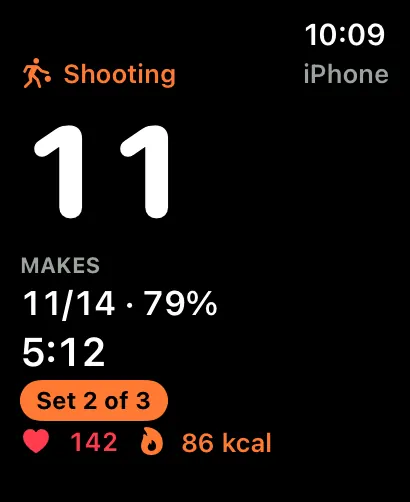
Start a camera drill on the iPhone and the Watch shows the same session:
- The drill name at the top, with the label iPhone so you know where the count comes from.
- The count in large type, with its unit: TOUCHES, REPS, MAKES or DRIBBLES.
- The clock, with a pause icon when the session is paused.
- The block, such as "Set 2 of 3" or "Rest", when you train in sets.
- Makes, attempts and the percentage for shooting.
- Heart rate and calories, when the Watch is recording the workout (more on that below).
The Watch taps your wrist when the session starts and stops, when a new block starts, at every 50, and once more 3 seconds before a rest ends. You can keep your eyes on the ball and still know when the next set begins.
Controls: pause, stop and next block
Swipe down on the live screen to reach the controls.
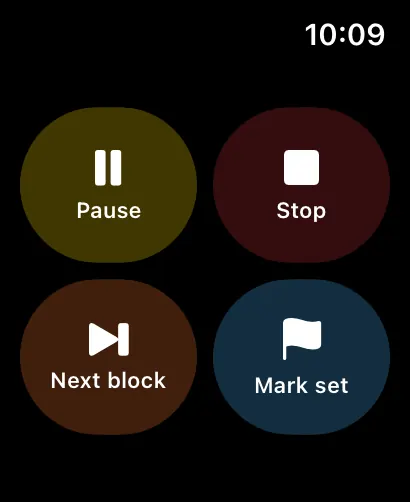
- Pause and Resume pause the session on the iPhone.
- Stop ends the session, and the iPhone saves it as usual.
- Next block skips ahead when you train in sets, for example to cut a rest short.
- Mark set appears in session modes with sets. It ends the current set and moves on, the same as Next block.
The controls work while the Watch can reach the iPhone. If the connection drops, the buttons are turned off until it comes back. The session keeps counting on the iPhone either way.
A Health workout from the Watch
If Save to Apple Health is on in TouchTally (Settings, under Goals and Health) and the Watch app is installed, starting a session on the iPhone opens the Watch app and starts a workout there too. The Watch records heart rate and active calories during the session and saves the workout to Apple Health at the end. The iPhone then doesn't save a second copy, so the session appears in Health once.
This is also what fills in the heart rate and kcal numbers on the live screen. Without a Watch workout, those two fields stay empty and the count still works.
Count at the wrist: jump rope without the camera
Not every session needs the phone camera. On the Watch home screen, under Count at the wrist, tap Jump rope and start skipping. The Watch counts from its own motion sensors, so the iPhone can stay in your bag.
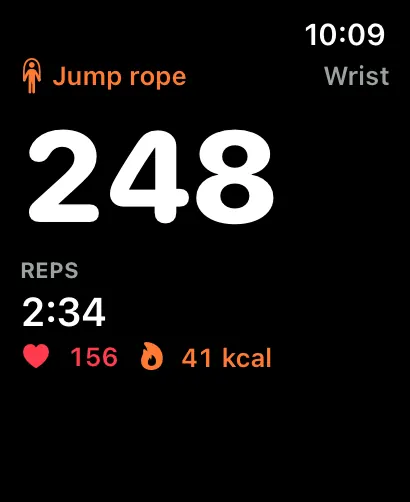
Count jump rope on Apple Watch
- Open TouchTally on the Watch.
- Under Count at the wrist, tap Jump rope.
- Skip as usual. The count, clock, heart rate and calories update as you go.
- Swipe down and tap Pause for a break, or Stop when you're done.
- Check the summary. It shows Saved to Health when the workout was saved.
Wrist sessions are saved to Apple Health as workouts when the Watch has Health permission and the count is above zero. They are not added to TouchTally's History on the iPhone, so they don't change your records or streak there. The Watch's own Streak complication does count the day as a training day. For a full session with records, use the camera or sound counting described in the jump rope counter post.
With Pro, the same menu has Dribbling for basketball at the wrist. The camera version is covered in the basketball dribble counter post.
The Watch home screen and complication
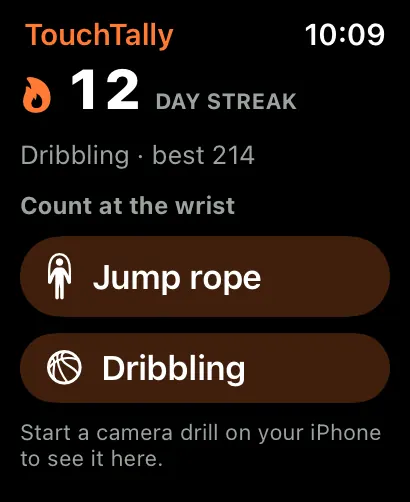
When no session is running, the Watch home screen shows your day streak in large type, your last drill with your best (for example "Dribbling · best 214"), and the Count at the wrist buttons. Below them: "Start a camera drill on your iPhone to see it here."
The Streak complication, "Your day streak and last session.", fits circular, rectangular, inline and corner watch faces. Depending on the size, it shows the streak, the last drill and best, how many training days you have this week against your goal, "Weekly goal met", or a nudge: "Train today to keep your streak". See streaks, weekly goals and badges for how the streak counts.
For a full setup with the iPhone, the Watch and a rope or a ball, our guide to counting jump rope and push-ups walks through phone placement step by step.
Which Apple Watch do I need?
Any Apple Watch that runs watchOS 10 or later, paired with an iPhone that has TouchTally installed.
Does the Watch count touches on its own?
Only for wrist sessions: jump rope, and dribbling with Pro. For juggling, push-ups, squats and the other camera drills, the iPhone counts and the Watch shows the number.
Will my session show up twice in Apple Health?
No. When the Watch records the workout, the iPhone skips saving its own copy, so each session is saved once.
Can I pause the iPhone from my wrist?
Yes. Swipe down on the live screen and tap Pause. Resume, Stop, Next block and Mark set are in the same place.
Do wrist sessions show up in my History?
No. Wrist sessions are saved to Apple Health but not to TouchTally's History on the iPhone, so they don't change your records there. The Watch's Streak complication counts the day as a training day.
Keep reading
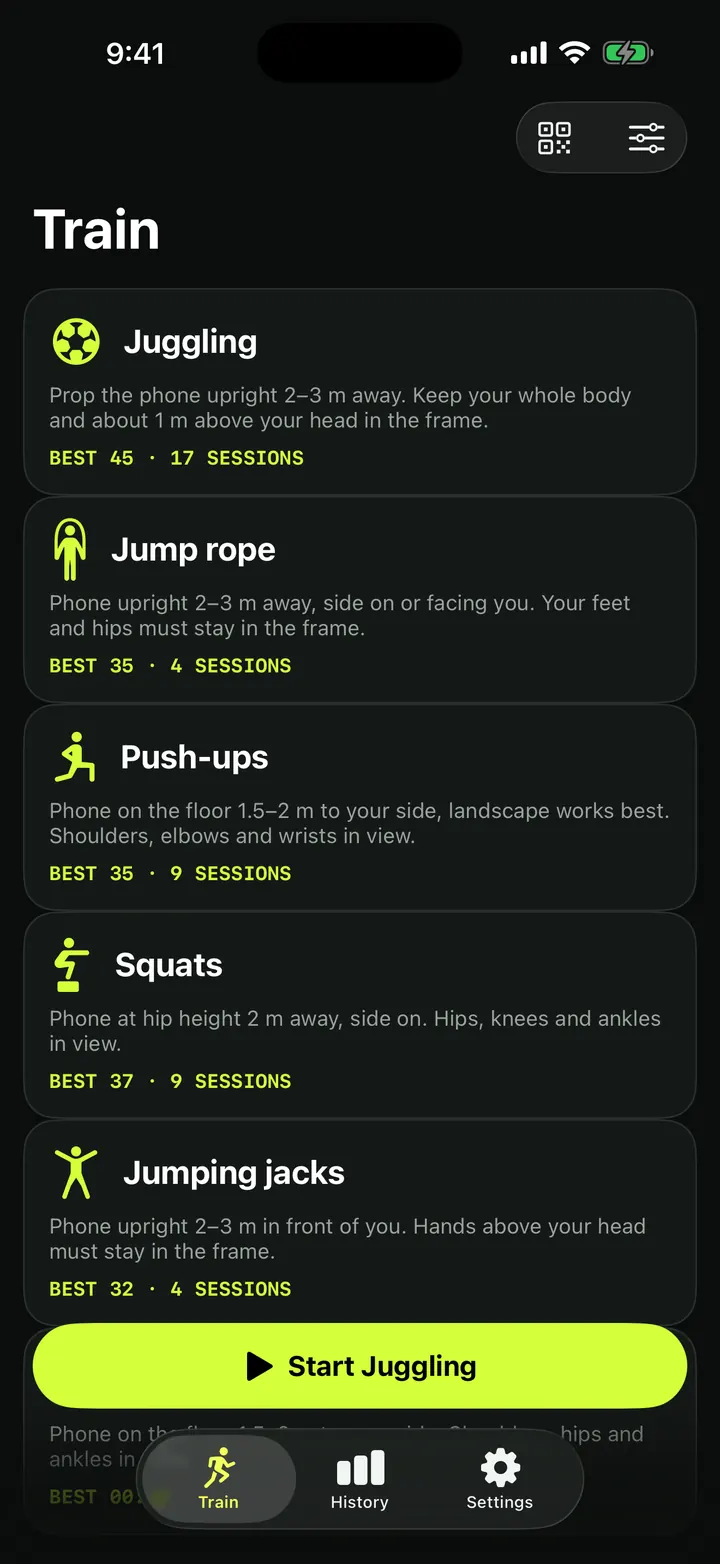
Jump rope counter: count skips with the camera, or by sound too
How TouchTally counts jump rope with the iPhone camera, how Count by sound adds the microphone to hear the rope, and how the two counts are merged at the end.
Read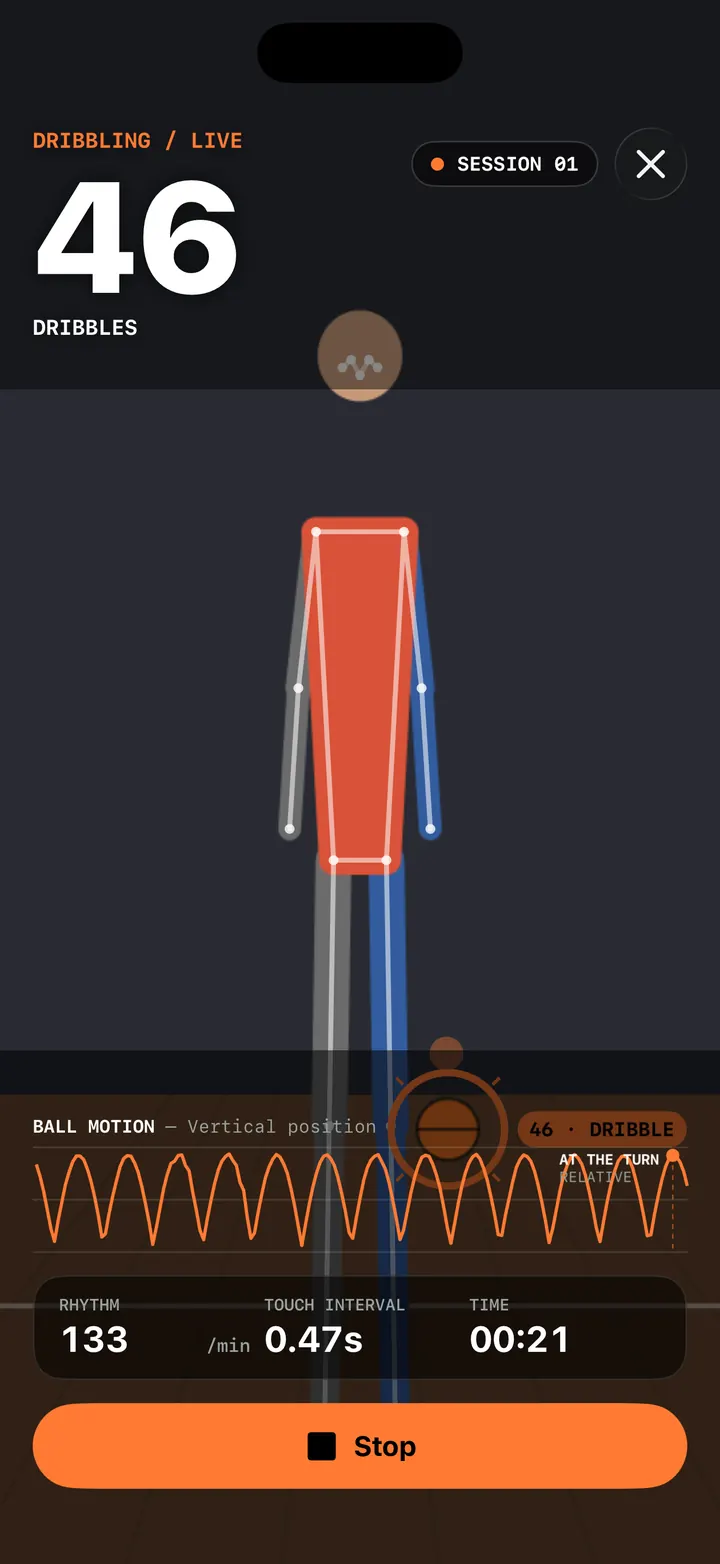
Basketball dribble counter: count dribbles with your iPhone or Apple Watch
Count basketball dribbles with TouchTally: set the iPhone at knee height, see rhythm and best streak, and with Pro count dribbles at the wrist on Apple Watch.
Read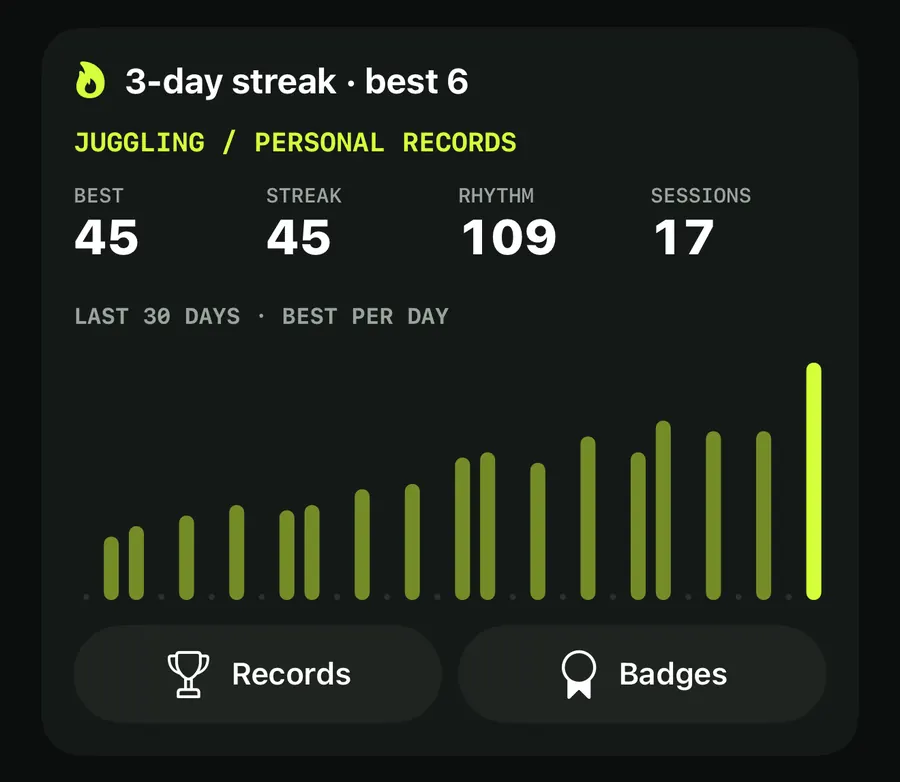
Training streaks, a weekly goal and badges that keep you coming back
How TouchTally counts day streaks with a weekly freeze day, sets a weekly training goal with reminders, awards 22 badges and puts it all in a widget.
ReadCount jump rope, push-ups and squats with your phone
Where to put your phone for each TouchTally drill, how jump rope can be counted by the sound of the rope, and how sets, rest and form feedback work.
Read guide