Replay angle tool: measure joint angles on any frame of your session
Pause a TouchTally replay, drag three handles onto your joints and read the angle in degrees and the lean from vertical. Plus the live form view chip.
Short answer
The angle tool in TouchTally's Replay lets you pause on any frame and measure a joint angle with three draggable handles. When the app has a pose for that frame, the handles start on the drill's key joints, such as shoulder, elbow and wrist for push-ups. The label shows the angle at the joint and how far the first arm leans from vertical. The angle tool is part of Pro.
A count tells you how many reps you did. It does not tell you how deep the squat was or whether your body stayed in a straight line. TouchTally already follows your body with the camera to count, so the Replay screen can show you the angles behind each rep. This post covers the angle tool in Replay and the form view chip you can see while you train.
Where to find the angle tool
Open any session you are allowed to replay and look at the row of controls under the timeline. From left to right you get:
- Previous event and Next event arrows, which jump touch to touch or rep to rep
- Play
- a speed control with 0.25×, 0.5× and 1×
- the Angle tool button, with an angle icon
- Share this frame, which only appears while the angle tool is on
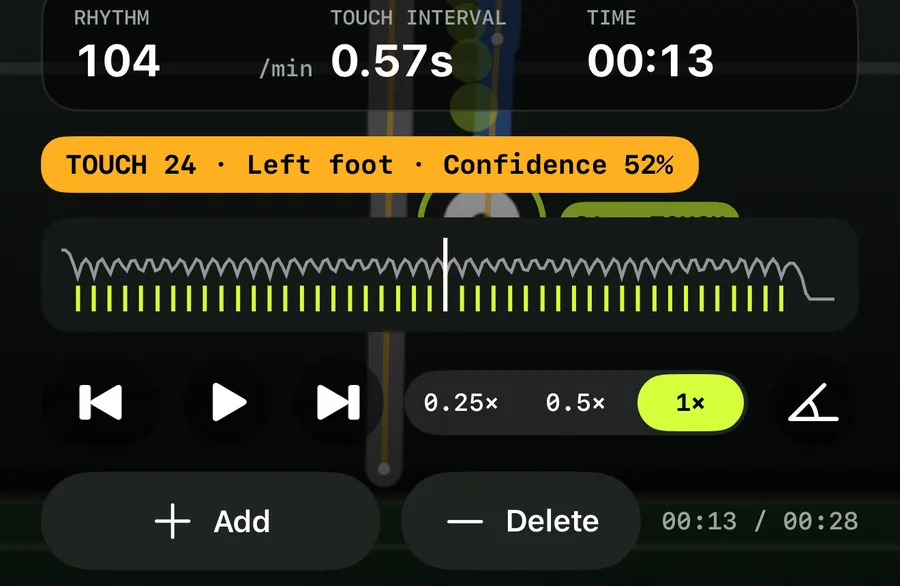
Turning the angle tool on pauses playback, so you are always measuring a still frame.
How to measure a joint angle
Measure an angle in Replay
- Open a session from History and tap Replay.
- Use the Previous event and Next event arrows to step to the rep or touch you want to check. The 0.25× speed helps if you would rather play up to it.
- Tap the Angle tool button. Playback pauses and three handles appear.
- Check where the handles sit. If they are not on the right joints, drag the two ends and the middle point (the vertex) until they are.
- Read the label next to the vertex, then tap Share this frame if you want to keep the picture.
What the handles and label show
The tool has three handles: two ends and a vertex in the middle. The angle is measured at the vertex.
When TouchTally has a pose for the frame you paused on, it places the handles on the joints that matter for the drill:
| Drill | Handles start on | What you are measuring |
|---|---|---|
| Push-ups | shoulder – elbow – wrist | how far the elbow bends |
| Jumping jacks | hip – shoulder – wrist | how high the arm goes |
| Plank | shoulder – hip – ankle | how straight the body line is |
| Every other drill | hip – knee – ankle | how far the knee bends |
If there is no pose for that frame, the handles start in a default shape in the middle of the picture and you place them yourself.
The label reads like "N° · M° from vertical". The first number is the angle at the vertex. The second is how far the first arm of the angle leans away from vertical. In a squat that tells you about trunk lean; in a plank it tells you about the body line.
To help you judge the picture, dashed vertical and horizontal reference lines run through the vertex, and an arc is drawn at the vertex to show which angle is being measured.
Share a measured frame
Share this frame exports the paused video frame as an image, with the skeleton, the angle and the reference lines drawn on it. That is handy when you want to send a coach a single frame instead of a whole clip.
The skeleton on the replay comes from the Show skeleton setting, which is on by default.
Form view while you train
You do not have to wait for the replay to see an angle. For body drills, the live screen can show a form view chip with the main joint angle for the drill:
- KNEE for squats
- ELBOW for push-ups
- ARM for jumping jacks
- BODY LINE for plank
When the camera sees both sides of your body, the angle is the average of the two.
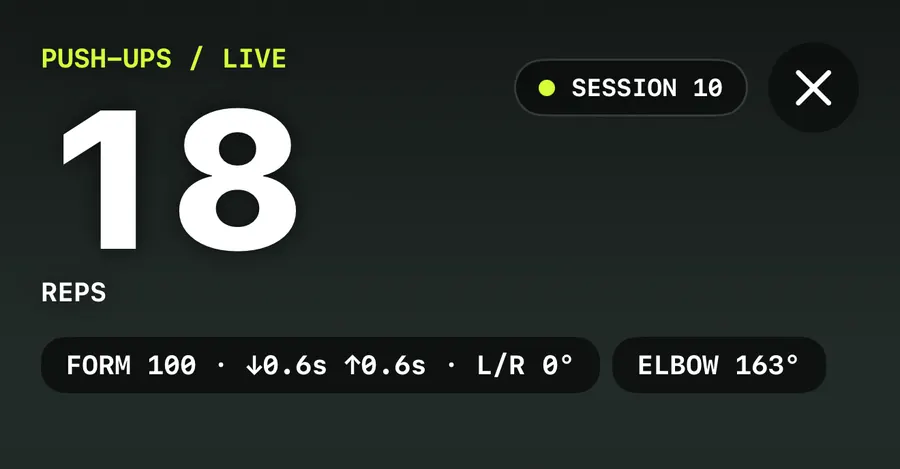
Next to it, the quality chip sums up the last rep, for example "FORM 100 · ↓0.6s ↑0.6s · L/R 0°": a form score, the time down and up, and the left/right difference. With Pro, the count itself is coloured by the last rep's form score, and the Result screen shows Form per rep bars. Tap a bar to open Replay at that rep, then turn on the angle tool to look closer.
For more on what the form score means for each drill, read about the push-up form score and clean squat reps.
Angle tool and count fixes
The angle tool sits on the same screen as the count fixes. With Pro, Add and Delete let you correct a touch or rep the camera got wrong; they are hidden for hold drills such as Plank. If you are checking a session because the count looks off, start with replay and fix your count, then use the angle tool on the reps that are left.
Setting up for good angles
The angle tool can only measure what the camera sees. A few habits make the numbers more useful:
- Film push-ups and squats side on, with the joints you want to measure fully in view. The jump rope and push-up counter guide covers phone placement.
- Keep the phone still for the whole set, so frames from different reps are comparable.
- Use the same setup each session if you want to compare angles over time.
Is the angle tool free?
No. The angle tool and Share this frame are part of TouchTally Pro. Free users can still replay their most recent session.
Which joints does the angle tool measure?
Any three points you place. When there is a pose for the frame, it starts on shoulder–elbow–wrist for push-ups, hip–shoulder–wrist for jumping jacks, shoulder–hip–ankle for plank, and hip–knee–ankle for other drills.
What does "from vertical" mean in the label?
It is how far the first arm of the angle leans away from a vertical line. For a squat that shows trunk lean; for a plank it shows the body line.
Can I share the frame I measured?
Yes. Tap Share this frame while the angle tool is on. The image includes the skeleton, the angle and the reference lines, with faces covered if Minors mode or Blur faces is on.
Does form view work for juggling?
No. Form view is for body drills such as squats, push-ups, jumping jacks and plank. Ball drills show the ball ring and rhythm stats instead.
Keep reading
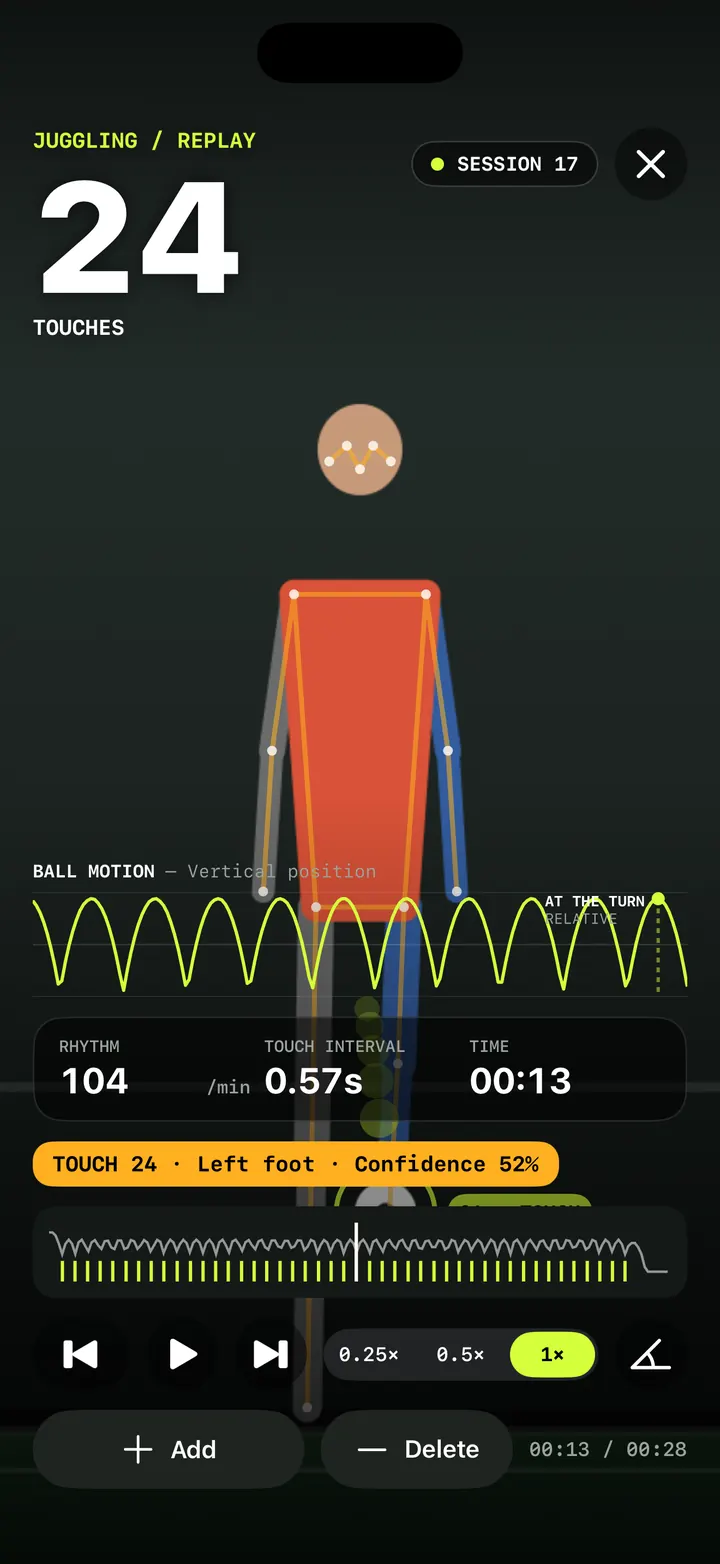
Replay and fix your count: check every touch in slow motion
Step through every counted touch or rep in TouchTally's replay at 0.25×, spot low-confidence counts, and with Pro add or delete the ones the camera got wrong.
Read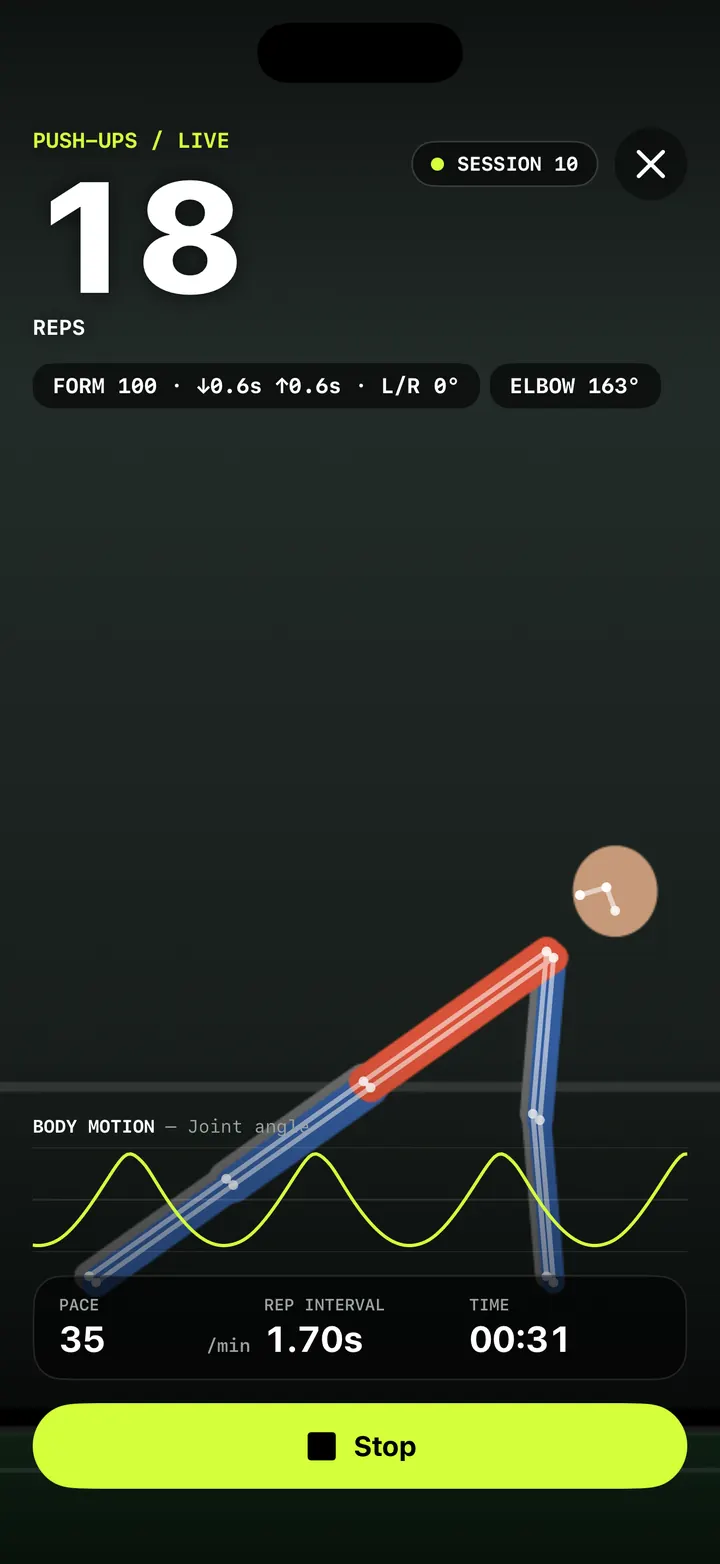
Push-up counter with a form score: count clean reps, not just reps
How TouchTally counts push-ups with the iPhone camera, scores each rep for depth, tempo and hip line, and adds voice form cues and a fatigue alert with Pro.
Read
Squat counter: count clean reps with depth, tempo and symmetry checks
How TouchTally counts squats with the iPhone camera, checks depth and tempo on every rep, counts clean reps and, with Pro, compares left and right sides.
ReadCount jump rope, push-ups and squats with your phone
Where to put your phone for each TouchTally drill, how jump rope can be counted by the sound of the rope, and how sets, rest and form feedback work.
Read guide