Replay and fix your count: check every touch in slow motion
Step through every counted touch or rep in TouchTally's replay at 0.25×, spot low-confidence counts, and with Pro add or delete the ones the camera got wrong.
Short answer
Every TouchTally session with a saved video can be replayed. You can slow it down to 0.25×, jump from one counted touch or rep to the next, and see which body part made it and how sure the camera was. With Pro you can also add a touch the camera missed or delete one it should not have counted, and the session is marked as edited wherever it appears.
A camera counter is fast, but it is not perfect. A ball half hidden behind your leg, a second ball rolling past or a rep that ends out of frame can all nudge the number. TouchTally does not ask you to trust the count blindly. Replay shows you exactly what was counted and when, so you can check it yourself.
What you see in Replay
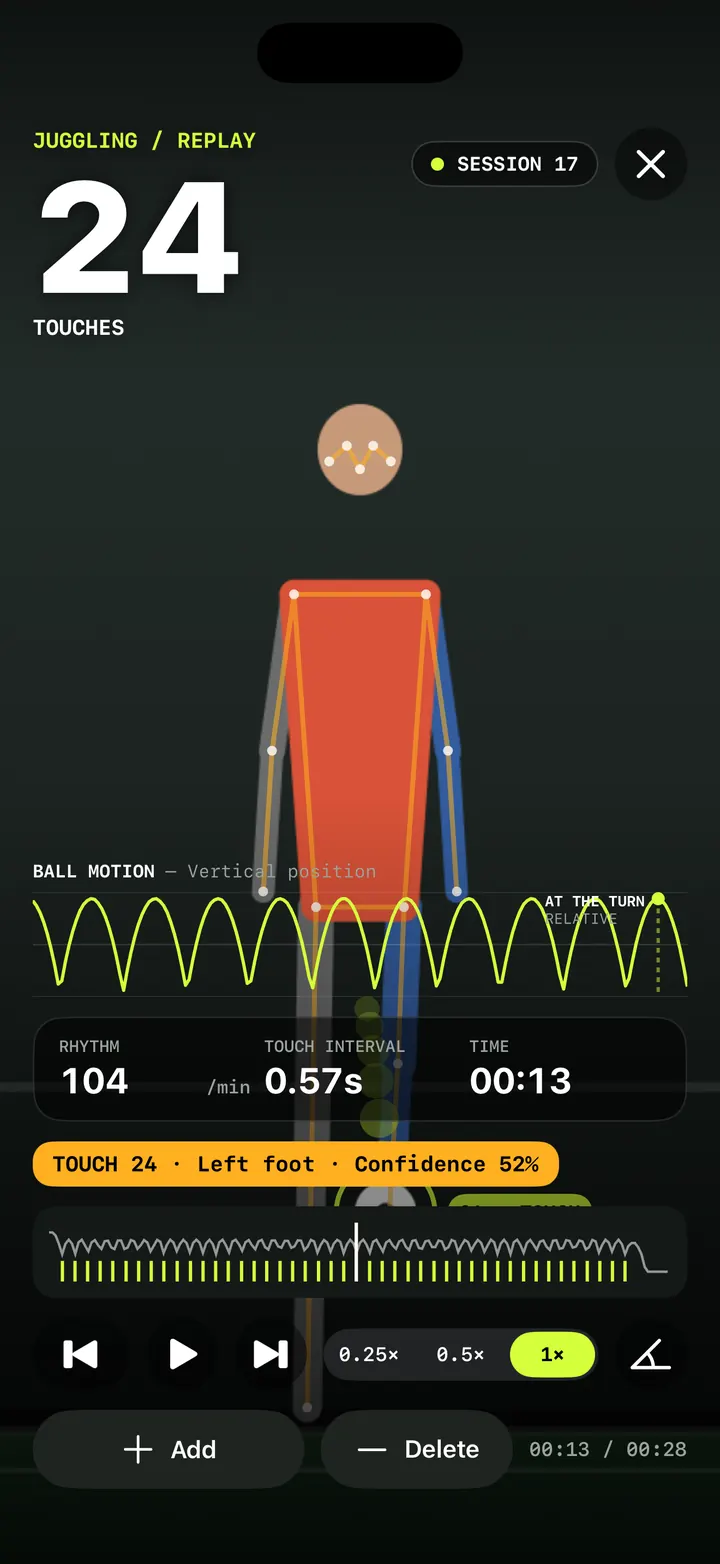
Replay opens on the session's video with the count, the drill name and the session number on top, the same way the live screen looks. Under the video are the tools for checking the count.
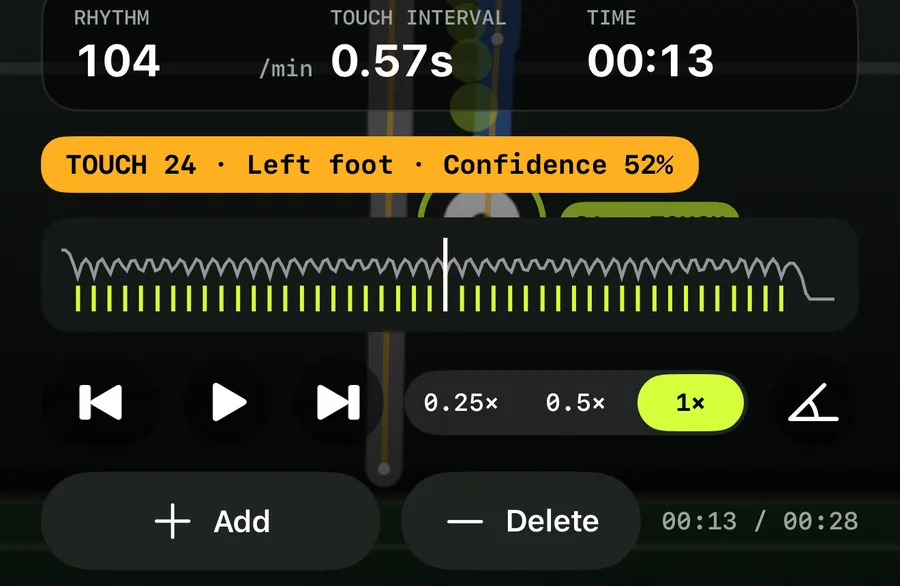
- The event tag. The selected touch or rep is described in one line, for example "TOUCH 12 · Left foot · Confidence 84%". It tells you which number it was, which body part the camera saw, and how confident the count was.
- The timeline. A strip with the ball's motion and a tick for every counted event. Drag along it or tap a spot to jump there.
- Previous event and Next event. The arrow buttons jump straight to the previous or next counted touch or rep and pause on it, so you never have to hunt for the exact frame.
- Speed. Play at "0.25×", "0.5×" or "1×". Quarter speed is the one to use when touches come quickly.
- "Angle tool". The angle button on the right opens a tool for measuring joint angles on a paused frame. It is covered in the replay angle tool post.
Spot the counts worth checking
You do not have to watch the whole session again. Counts the camera was less sure about, below 60% confidence, are shown in amber, both in the event tag and as ticks on the timeline. Those are the ones worth a look: a touch hidden behind a leg, a ball that brushed the frame edge, a rep that was hard to see.
Step to each amber tick with the arrows, play it at 0.25× and decide for yourself whether it was a real touch.
Fix the count with Add and Delete
With TouchTally Pro, two buttons under the controls let you correct the number.
- "Add" puts a touch (for juggling) or a rep (for other drills) at the current point in the video. Use it when you can see a touch on screen that was not counted.
- "Delete" removes the selected event, or the nearest one within 0.4 seconds. If there is nothing close, TouchTally tells you "Nothing to delete here" and suggests "Jump to a touch or rep with the arrows first."
A touch you add shows "Added by hand" in its tag instead of a confidence value. After each change, the total and the session's stats are worked out again. VoiceOver reads the new total aloud, for example "Added. Total 25."
For Shooting, a rep you add counts as a make. Add and Delete are not shown for Plank, because a hold is timed rather than counted.
Fix a miscounted juggling session
- Open the session's result and tap Replay.
- Look along the timeline for amber ticks, or for a gap where you know you touched the ball.
- Tap Next event to land on a counted touch, then play it at 0.25×.
- If it was not a real touch, tap Delete.
- If a touch is missing, scrub to the frame where your foot meets the ball and tap Add.
- Close Replay. The new count is saved with the session.
Edited sessions stay honest
A fixed count is still your count, but TouchTally does not hide that it was changed. Once you edit a session, it is marked everywhere it shows up:
| Where | What it says |
|---|---|
| Result screen | "Edited by hand in Replay" |
| History list | "edited" |
| Result image | "COUNT EDITED BY HAND" |
| PDF report | Edited rows are in bold |
| CSV export | An "edited" column |
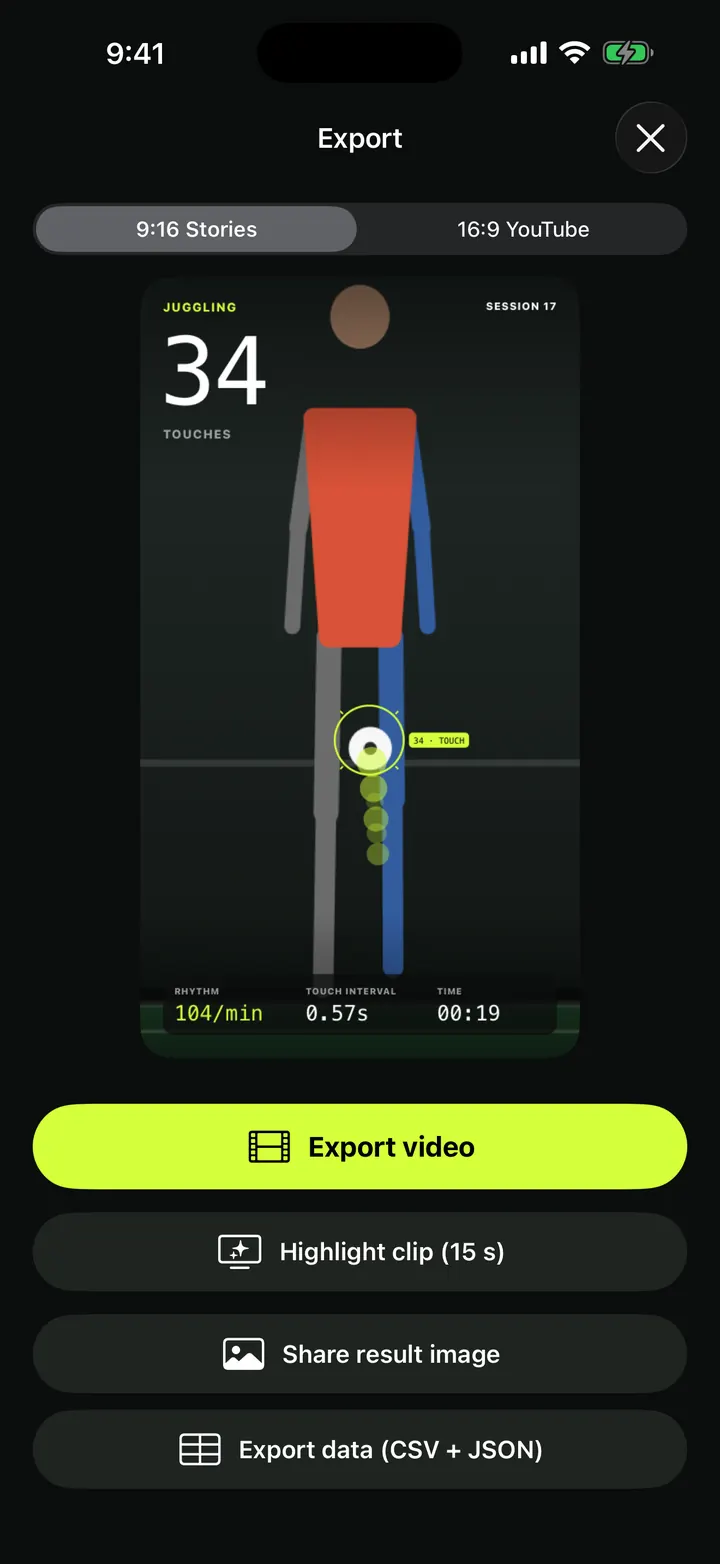
That way a coach or teammate looking at your numbers knows which ones were corrected by hand. Exporting is covered in overlay video export and result images, CSV and PDF.
Other things you can do in Replay
- "Share this frame" shares the paused frame as an image, handy for showing a coach one moment.
- Jump from form bars. With Pro, tapping a bar in "Form per rep" on a push-up or squat result opens Replay at that rep. See the push-up form score.
- Faces stay blurred. If Minors mode is on now, or was on when the session was recorded, faces stay blurred in Replay too. More in face blur and Minors mode.
If you are chasing a juggling record, an honest count is part of the fun. Our guide to beating your juggling record has a plan for the sessions in between.
Can I replay a session for free?
Yes. The free plan replays your most recent session with all the viewing tools: slow motion, event stepping and the confidence tag. Replaying older sessions and editing counts are part of Pro.
What does the confidence number mean?
It is how sure the counter was that a moment was a real touch or rep. Counts below 60% are shown in amber so you can check them first. It is not a score of your technique.
Will people know I changed my count?
Yes. Edited sessions say "Edited by hand in Replay" on the result, "edited" in history and "COUNT EDITED BY HAND" on result images. PDF reports show edited rows in bold, and CSV exports have an "edited" column.
Why can't I find the Replay button?
Replay needs a saved video. If "Save video" was off when you recorded the session, only the numbers were kept. On the free plan, sessions older than your most recent one open the Pro screen instead.
Can I fix a plank time in Replay?
No. Add and Delete are hidden for Plank, because a hold is timed rather than counted rep by rep.
Keep reading
Replay angle tool: measure joint angles on any frame of your session
Pause a TouchTally replay, drag three handles onto your joints and read the angle in degrees and the lean from vertical. Plus the live form view chip.
Read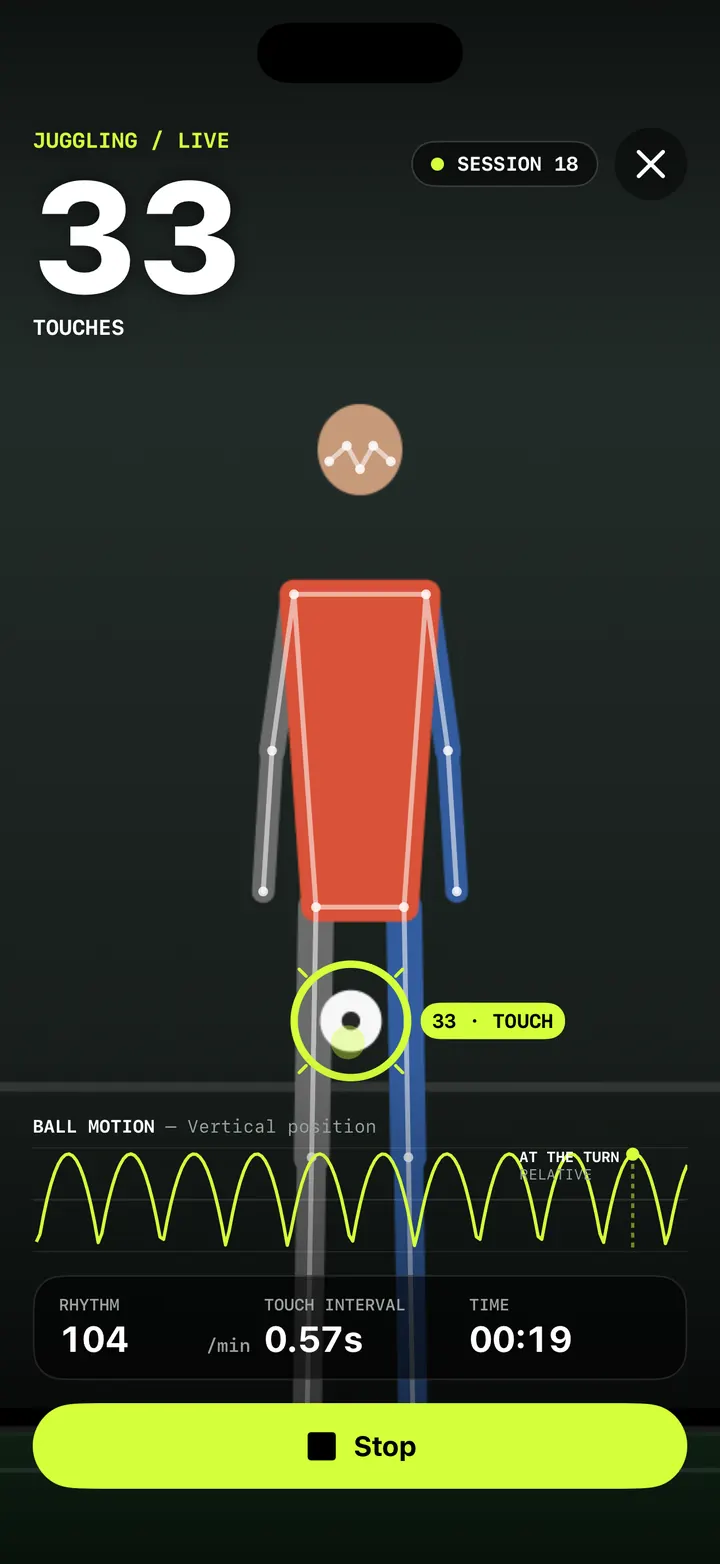
Live juggling counter: count every touch with your iPhone camera
How TouchTally counts soccer juggling touches live with the iPhone camera: the setup check, locking on to your ball, the big count and the spoken milestones.
ReadOverlay video export: your session with the count burned in, 9:16 or 16:9
Export a TouchTally session as an mp4 with the live count, ball ring and stats on top, in 9:16 for Stories or 16:9 for YouTube, or cut a 15 s highlight clip.
ReadHow to beat your juggling record: rhythm, replay and records
Use TouchTally’s rhythm, touch interval, slow-motion replay, streaks and challenges to understand why a juggling run ends and how to make the next one longer.
Read guide