Training video, kids and privacy: how TouchTally handles it
A training app that films you deserves a few questions. Where does the video go? Who can see it? What if the player is a child? This guide explains how TouchTally handles video, sound and records, and the settings that put you in control. The full details are in the privacy policy.
Counting happens on your phone
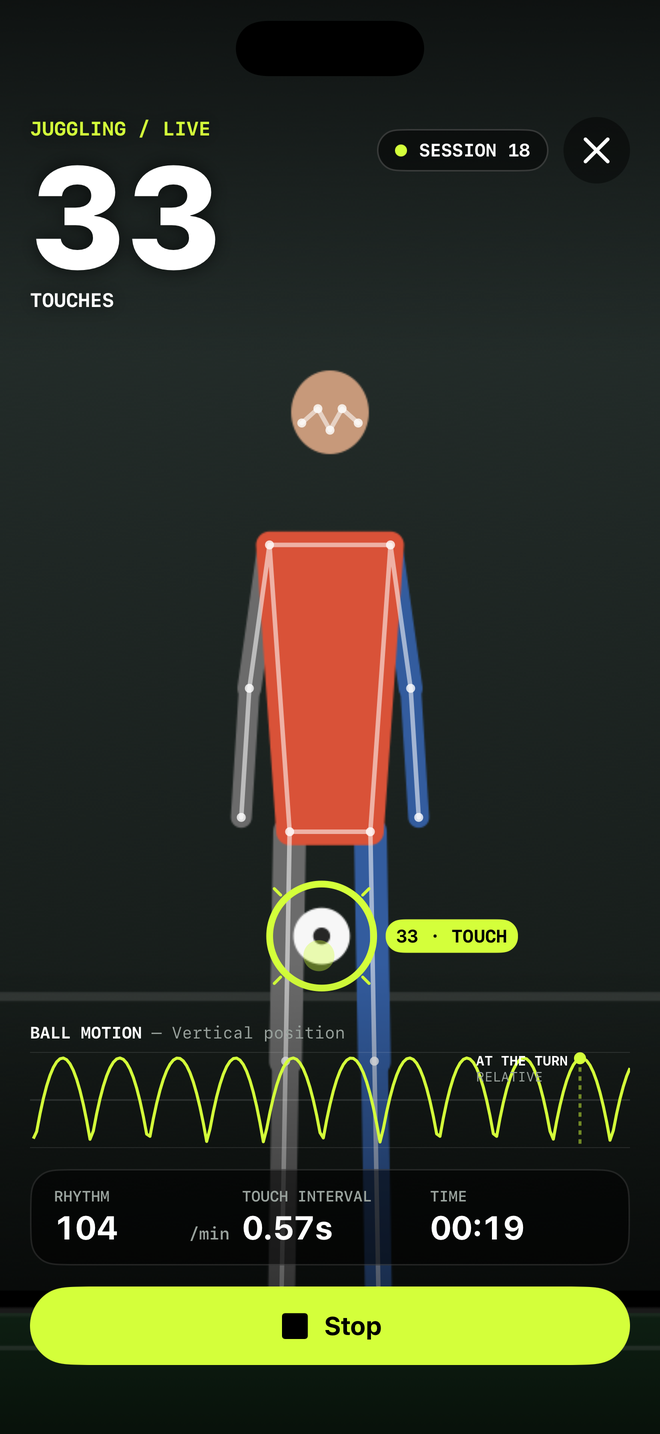
TouchTally counts by analysing camera frames on your phone, using Apple’s Vision framework to follow body pose and its own tracking to follow the ball. There is no account and no TouchTally server. Frames are not sent anywhere to be counted.
Videos stay on your phone
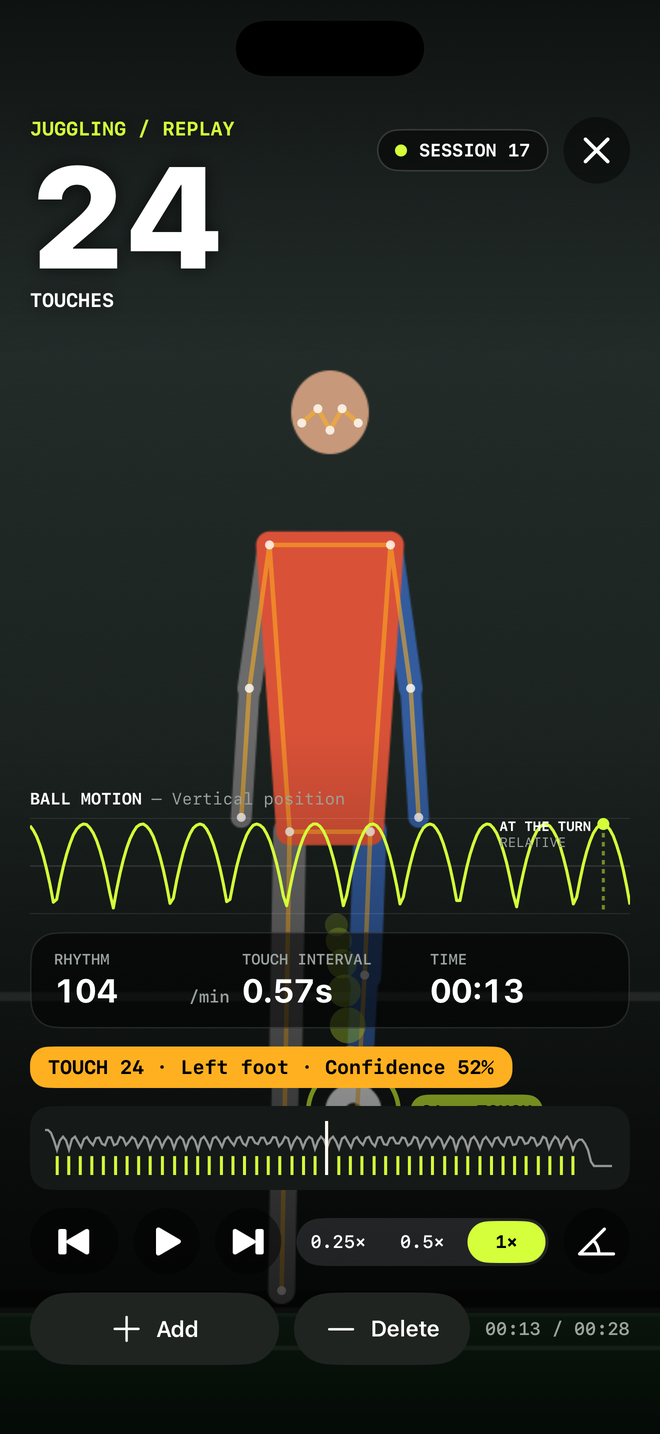
Session videos are saved on your phone without sound so you can replay them. They leave the phone only if you export or share them yourself.
You decide how much is kept:
- Turn off Save video to keep the count and the stats without any video.
- Set videos to delete themselves after 7, 30 or 90 days.
- Use Delete old videos or Delete all videos at any time.
- Exclude videos from iCloud backup if you do not want them in your device backup.
The microphone is only for jump rope
TouchTally asks for the microphone only if you count jump rope by the sound of the rope. The sound is analysed live to hear the rope and is never recorded or saved. Without the microphone, jump rope still counts with the camera.
Minors mode for young players
Many players who juggle every day are children, often filmed by a parent or coach. Minors mode is designed for that:
- It blurs faces in the camera view and in replay, and pixellates them in every exported video.
- It hides the Apple Health option.
- It keeps sessions out of Spotlight search.
Turn it on in Settings when a child is training. A parent or guardian should set up the app for a child.
Filming other people
Please only film people who have agreed to it, and for children, their parent or guardian. Keep bystanders out of the frame; it also makes counting more accurate. When you share a video or result, think about who will see it.
Challenges without a server
When you challenge a friend, the challenge is packed into a code, a link or a QR code that you send yourself. There is no TouchTally server holding challenges or leaderboards, and the leaderboard in Pro lives on your phone. You can choose the name that appears on your challenges in Settings.
Apple Health is optional
Save to Apple Health is off by default. If you turn it on, TouchTally writes finished sessions as workouts. It never reads your Health data. Minors mode hides this option.
No ads, and analytics you can turn off
The TouchTally app has no advertising and no tracking across other apps or websites. To fix crashes and see which drills and features are used, it sends anonymous usage and crash data through Firebase: fixed codes such as the drill and a count range, never video, sound, names or exact counts. It’s on by default, and you can turn it off with Share anonymous usage in Settings, under Privacy.
Keeping and deleting your data
Because there is no account and no cloud sync, we cannot see your sessions and cannot restore them for you. With TouchTally Pro you can keep your own copy of your stats with Export all sessions (CSV + JSON) in Settings.
To delete everything, open Settings, then Storage, and tap Delete everything. This deletes every session, video and record on your phone and cannot be undone. Deleting the app does the same. Workouts already saved to Apple Health stay there until you delete them in the Health app.
Next steps
Read the full privacy policy, or contact us through support with any question.
See the product in action
Related guides
How to beat your juggling record: rhythm, replay and records
Use TouchTally’s rhythm, touch interval, slow-motion replay, streaks and challenges to understand why a juggling run ends and how to make the next one longer.
How to set up your phone to count soccer juggling
Where to put your phone, how far away, and what light and background to use so TouchTally counts every juggling touch. Plus quick fixes when the count is off.
Count jump rope, push-ups and squats with your phone
Where to put your phone for each TouchTally drill, how jump rope can be counted by the sound of the rope, and how sets, rest and form feedback work.
Feature walkthroughs
Squat counter: count clean reps with depth, tempo and symmetry checks
How TouchTally counts squats with the iPhone camera, checks depth and tempo on every rep, counts clean reps and, with Pro, compares left and right sides.
ReadJump rope counter: count skips with the camera, or by sound too
How TouchTally counts jump rope with the iPhone camera, how Count by sound adds the microphone to hear the rope, and how the two counts are merged at the end.
Read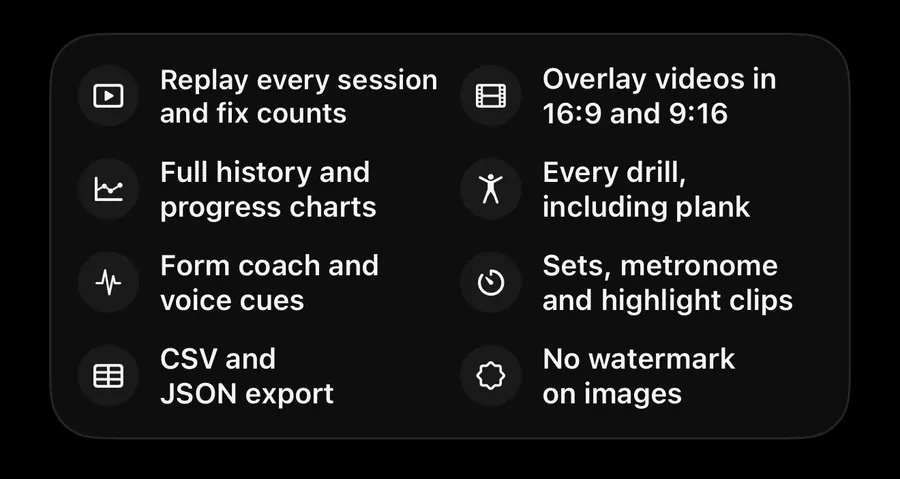
Plank timer that checks your form: only count the seconds you hold
How TouchTally's plank timer uses the iPhone camera to count only the seconds your body stays in line, warns when your hips sag or rise, and maps the hold.
Read