Result images, CSV and JSON export, PDF progress reports and backups
Share a TouchTally result image in post, story or square size, export sessions as CSV and JSON, make a 30-day PDF progress report or back up with a password.
Short answer
TouchTally lets you take your results out of the app in four ways. Anyone can share a result image of a session in Post (4:5), Story (9:16) or Square (1:1) size. With Pro you can also export the raw data as CSV and JSON, make a PDF progress report of the last 30 days, and back up all your sessions to a password-protected file you can restore later.
A count is more useful when you can show it to someone or keep it somewhere safe. A coach may want a one-page summary, a parent a picture for the family chat, and a data fan a spreadsheet. TouchTally covers all three, and all of it is made on the iPhone.
Share a result image
Every session's Export sheet has a Share result image button. Tap it and pick a size:
| Option | Size in pixels | Good for |
|---|---|---|
| Post (4:5) | 1080×1350 | feed posts |
| Story (9:16) | 1080×1920 | stories and status updates |
| Square (1:1) | 1080×1080 | chats and profile grids |
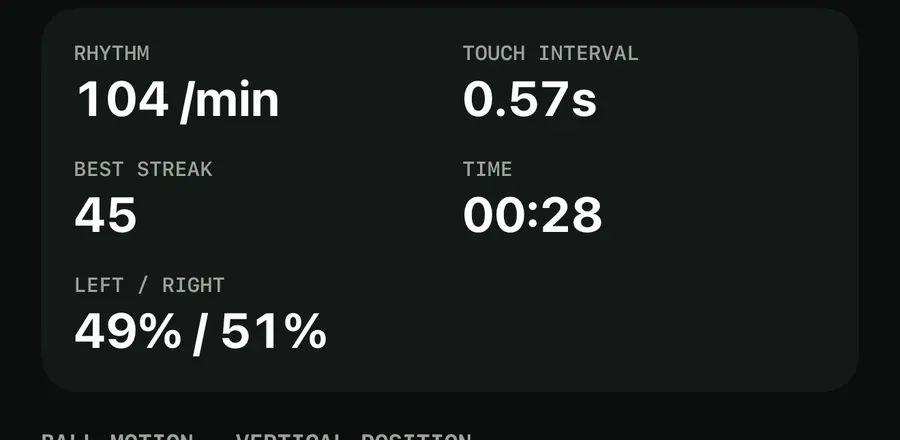
The image is a card with:
- the drill name, the date, and your count in large type with its unit
- a "NEW PERSONAL RECORD" pill when the session beat your best
- a grid of stats from the session, up to 8 (4 on the Square card)
- "COUNT EDITED BY HAND" if you corrected the count in Replay, so nobody has to wonder
- a QR code with "Scan to take me on" and "Free challenge in TouchTally", which opens a challenge to beat your score
- a timeline of the session when there is room
- "SESSION N" and the TouchTally name at the bottom
The image is saved as a PNG and handed to the share sheet. Result images are free. On the free plan the footer reads "Made with TouchTally"; with Pro it shows a plain "TouchTally" in grey instead.
Export data as CSV and JSON
If you want to dig into the numbers yourself, Export data (CSV + JSON) on the Export sheet saves a ZIP for that session with two files:
- events.csv, one row per touch or rep, with the columns
t_ms,time,kind,part,confidence,editedandcount - session.json, with the session details and stats
To export everything at once, go to Settings, open Storage and tap Export all sessions (CSV + JSON) under Your data. You get a ZIP named like TouchTally_history_<date>.zip containing:
- manifest.json
- sessions.csv, one row per session, with columns including
drill,session,started_at,duration_ms,total,rhythm_per_min,best_streak,left_right_ratio,hold_ms,editedandhas_video - one folder per session, each with its own events.csv and session.json
CSV opens in Numbers, Excel or Google Sheets. Videos are not part of the data export.
Make a PDF progress report
The PDF report sums up the last 30 days, handy to send to a coach or keep for yourself.
Create a progress report
- Open the History tab.
- Tap the filter button at the top right.
- Tap Progress report (PDF).
- Share or save the file "TouchTally progress report.pdf" from the share sheet.
The report covers:
- the date range, your nickname as Athlete if you set one, the number of sessions and training days
- a best-per-day chart for the drill you trained most
- a Records table with each drill's sessions, best, latest and the change from first to latest in percent
- the badges you have earned
- a Sessions table with date, drill, score and duration; rows you edited by hand are in bold
A footnote is honest about where the numbers come from: "Counts come from the camera on the iPhone and may differ slightly from a hand count. Bold rows were edited by hand."
For more on records and the 30-day chart in the app itself, see training history and personal records.
Back up and restore your sessions
Your sessions live on the iPhone you train with. A backup lets you keep a copy or move them to a new phone.
Back up with a password (in Settings › Storage › Your data) asks you to choose a password and type it again, then encrypts your sessions into a .ttbackup file you can save in Files or send to yourself. Note the warning: "You need this password to restore the backup. It can't be recovered."
Restore from backup opens the Files picker. Pick a .ttbackup file and enter its password, or pick a plain data export ZIP. TouchTally adds only the sessions that are not already on the iPhone, then tells you how many were added.
If you share images or reports of young athletes, read the guide to video privacy and Minors mode first.
Are result images free?
Yes. Every user can share a result image in Post (4:5), Story (9:16) or Square (1:1) size. Free images carry a small "Made with TouchTally" mark.
What is in the CSV export?
Each session's events.csv has one row per touch or rep with time, kind, body part, confidence, whether it was edited and the running count. The all-sessions export adds sessions.csv with one row per session.
Does the PDF report show sessions I edited?
Yes. Edited sessions are shown in bold in the Sessions table, and the footnote explains what bold means.
Are my videos in the backup?
No. Backups hold your sessions, counts and stats. Videos stay on the iPhone and are not included.
What if I restore a backup twice?
Nothing is duplicated. Restore only adds sessions that are not already on the iPhone, and tells you if every session is already there.
Keep reading
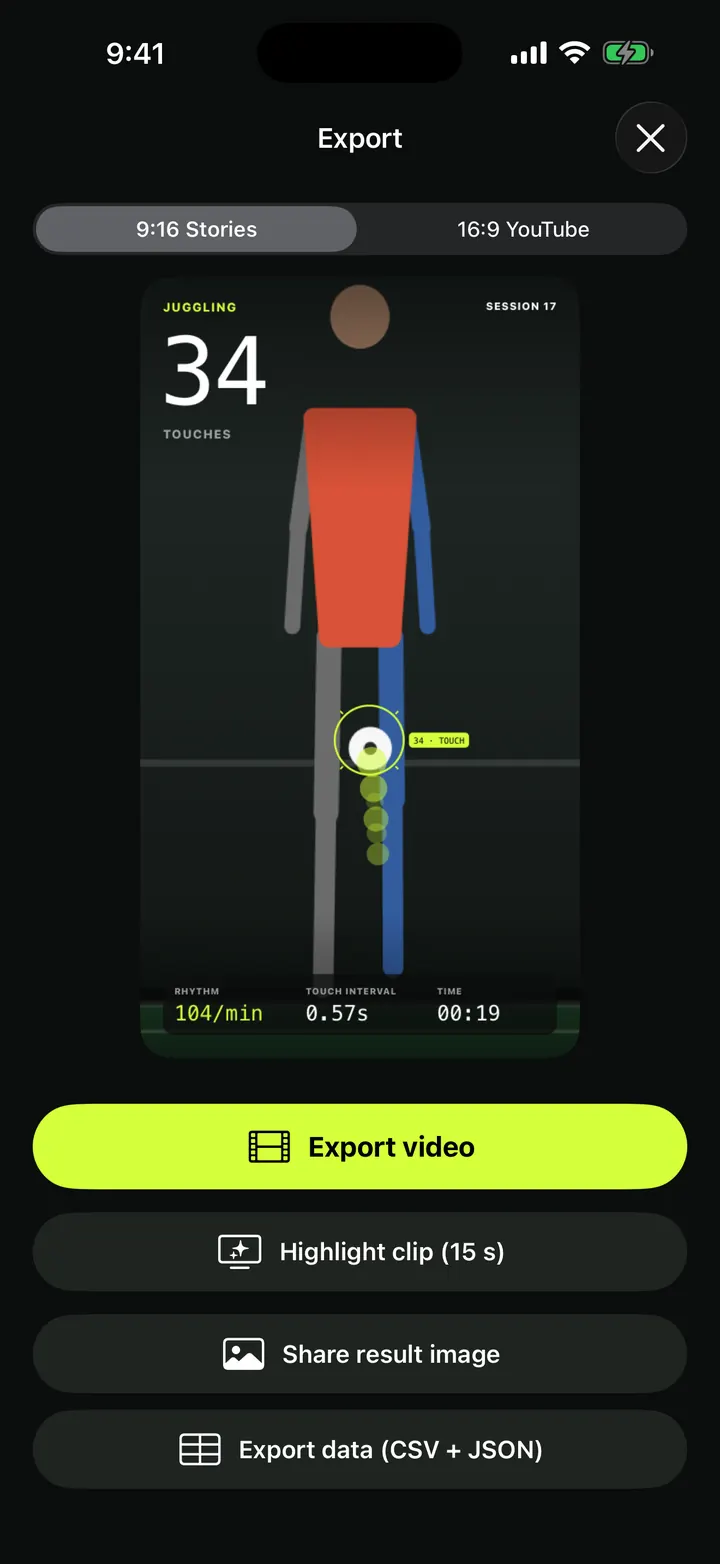
Overlay video export: your session with the count burned in, 9:16 or 16:9
Export a TouchTally session as an mp4 with the live count, ball ring and stats on top, in 9:16 for Stories or 16:9 for YouTube, or cut a 15 s highlight clip.
Read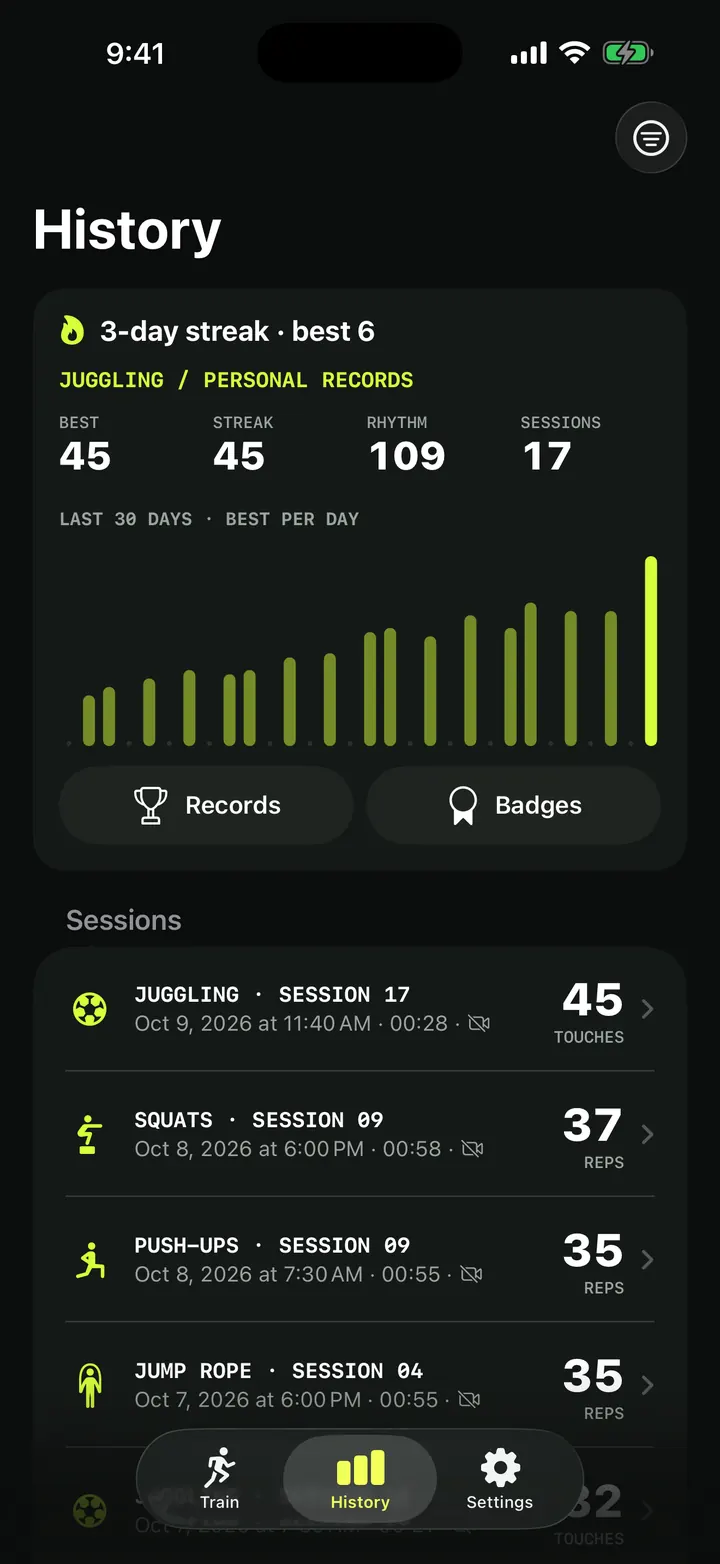
Training history and personal records: every session in one place
How TouchTally's History tab works: the streak line, personal records per drill, the 30-day best-per-day chart, filters, session list and the iPad layout.
ReadTouchTally Free vs Pro: what you get on each plan
What the free TouchTally plan includes, what Pro adds, and how the Yearly, Monthly and Lifetime plans differ. Counting stays free and unlimited on 8 drills.
ReadTraining video, kids and privacy: how TouchTally handles it
Where TouchTally keeps sessions and videos, what the camera and microphone are for, how Minors mode protects young players, and how to delete everything.
Read guide