Overlay video export: your session with the count burned in, 9:16 or 16:9
Export a TouchTally session as an mp4 with the live count, ball ring and stats on top, in 9:16 for Stories or 16:9 for YouTube, or cut a 15 s highlight clip.
Short answer
TouchTally can export any session that has a video as an mp4 with the overlay drawn into the picture: the drill name, the running count, the ball ring or skeleton and a stats bar. Choose 9:16 Stories, which follows the athlete with a smooth crop, or 16:9 YouTube. Highlight clip (15 s) cuts the best stretch of the session for you. Video export is part of Pro.
A number on a screen is easy to doubt. A clip where the count ticks up with every touch is not. TouchTally records your session while it counts, so after you stop you can turn it into a video with the count on top, ready for a story, a team chat or your coach.
Open the Export sheet
Every session has a Result screen with Replay, Export and Challenge a friend. Tap Export to open the sheet.
At the top is the format switch, 9:16 Stories or 16:9 YouTube. Under it is a live preview. It is drawn by the same code that renders the final video, so what you see in the preview is what you get in the file.
Below the preview are the actions:
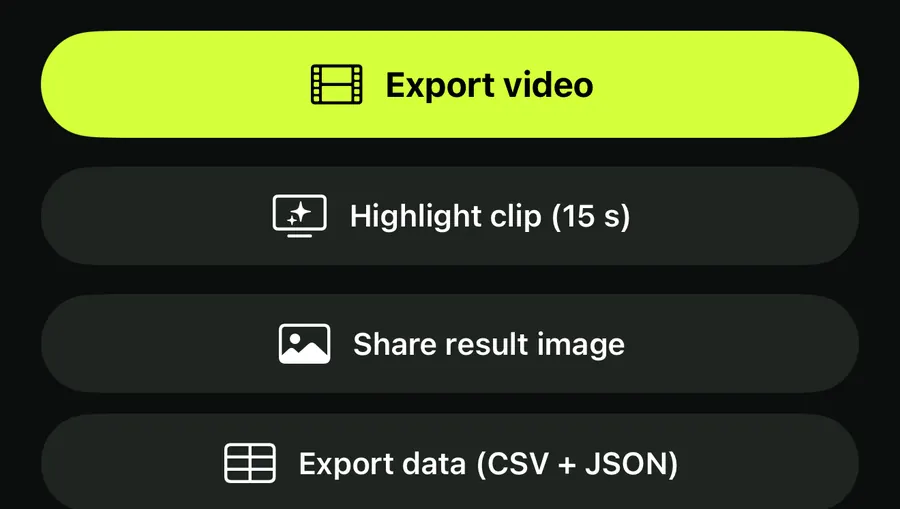
- Export video: the whole session as an overlay video
- Highlight clip (15 s): the best 15 seconds, in the chosen format
- Share result image: a still card, see result images, CSV and PDF export
- Export data (CSV + JSON): the raw events and stats
Export an overlay video
- Open the session from History and tap Export on the Result screen.
- Pick 9:16 Stories or 16:9 YouTube and check the preview.
- Leave Blur faces on if anyone in the video should not be recognisable.
- Tap Export video, or Highlight clip (15 s) for a short cut.
- Wait for the "Exporting video…" progress to reach 100 % done. Cancel stops the export and deletes the partial file.
- When the share sheet opens, save the video to Photos or send it where you like.
What the overlay shows
The overlay is burned into the video, so it plays the same in any app. It shows:
- the drill name at the top left and the session number at the top right
- the big count with its unit, such as TOUCHES or REPS
- for ball drills, a ring on the ball with a short trail and a tag such as "34 · TOUCH"; for body drills, the skeleton
- a stats bar along the bottom
The stats bar depends on the drill:
| Drill type | Stats bar |
|---|---|
| Ball drills, such as Juggling | RHYTHM, TOUCH INTERVAL, TIME |
| Rep drills, such as Push-ups | PACE, REP INTERVAL, TIME |
| Plank | HELD, TIME |
The numbers update as the video plays, in step with the count you saw live, plus any corrections you made in Replay.
9:16 Stories or 16:9 YouTube
The two formats handle the picture differently.
9:16 Stories renders at 1080×1920. Instead of a fixed crop, it follows the athlete: TouchTally uses the body and ball positions it already tracked to move a smoothed crop window along with you. If there is no pose to follow, it falls back to a centre crop.
16:9 YouTube renders at 1920×1080. A landscape recording fills the frame. A portrait recording is fitted onto a dark background, so the whole athlete stays in view rather than being cut off at the head and feet.
Highlight clip (15 s)
Not every clip needs the warm-up and the dropped balls. Highlight clip (15 s) picks a 15-second window for you:
- It centres the window on your longest unbroken streak.
- If that streak lasts longer than 15 seconds, the clip ends 1 second after the streak does, so you see the finish.
- If there is no clear streak, it falls back to the stretch with the steadiest rhythm.
The highlight is rendered at 30 fps in whichever format you picked. The button is hidden when a session has no counted touches or reps.
File names
Exports get descriptive names, so they are easy to find later. A full video looks like TouchTally_juggle_S01_2026-10-08_1530_9x16.mp4, with the drill, session number, date, time and format. Highlight clips have _highlight_ in the name.
Privacy in exported videos
The Blur faces switch on the Export sheet covers faces in the exported video. In Minors mode it is always on, and the sheet notes "Minors mode: faces are pixellated." The analysis and the rendering both happen on the iPhone. Read more in face blur and Minors mode and the guide to video privacy and Minors mode.
Is overlay video export free?
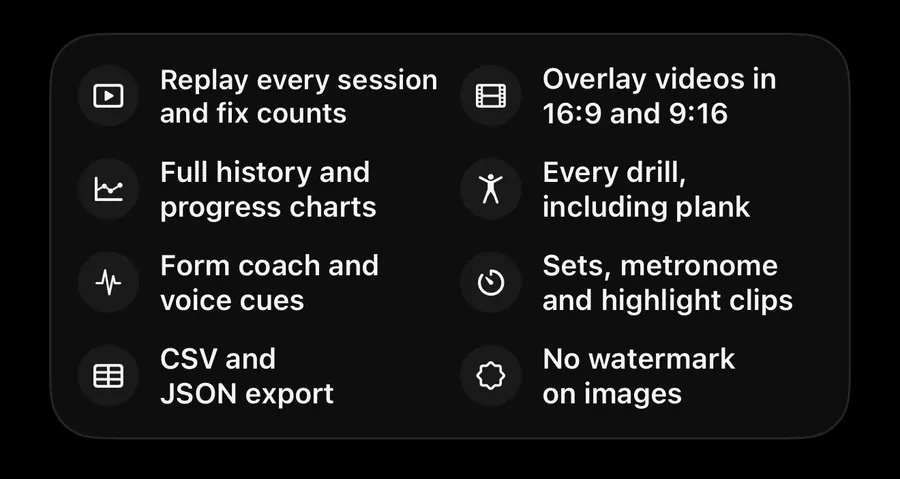
No. Export video and Highlight clip (15 s) are part of TouchTally Pro. On the free plan you can still share a result image of any session.
What resolution are the exported videos?
1080×1920 for 9:16 Stories and 1920×1080 for 16:9 YouTube, saved as mp4.
Will my head be cut off in the 9:16 version?
The 9:16 export follows the athlete with a smoothed crop based on the tracked body and ball. When no pose is available, it uses a centre crop instead.
How does the highlight clip choose its 15 seconds?
It centres on your longest unbroken streak. If there is none to use, it picks the stretch with the steadiest rhythm.
Why can't I export a video for some sessions?
The session has no saved video, either because Save video was off or because the video was deleted. You can still export the result image and the data.
Keep reading
Result images, CSV and JSON export, PDF progress reports and backups
Share a TouchTally result image in post, story or square size, export sessions as CSV and JSON, make a 30-day PDF progress report or back up with a password.
Read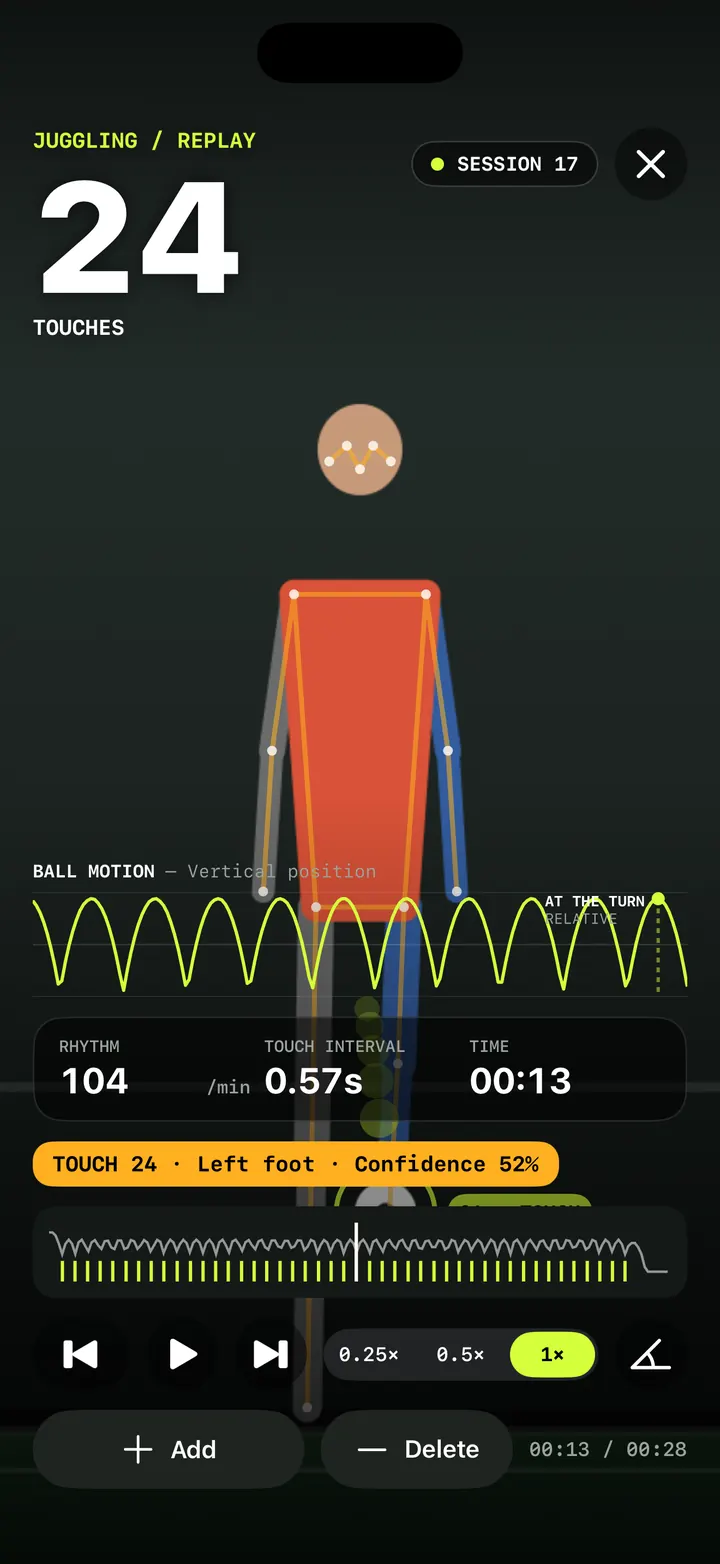
Replay and fix your count: check every touch in slow motion
Step through every counted touch or rep in TouchTally's replay at 0.25×, spot low-confidence counts, and with Pro add or delete the ones the camera got wrong.
Read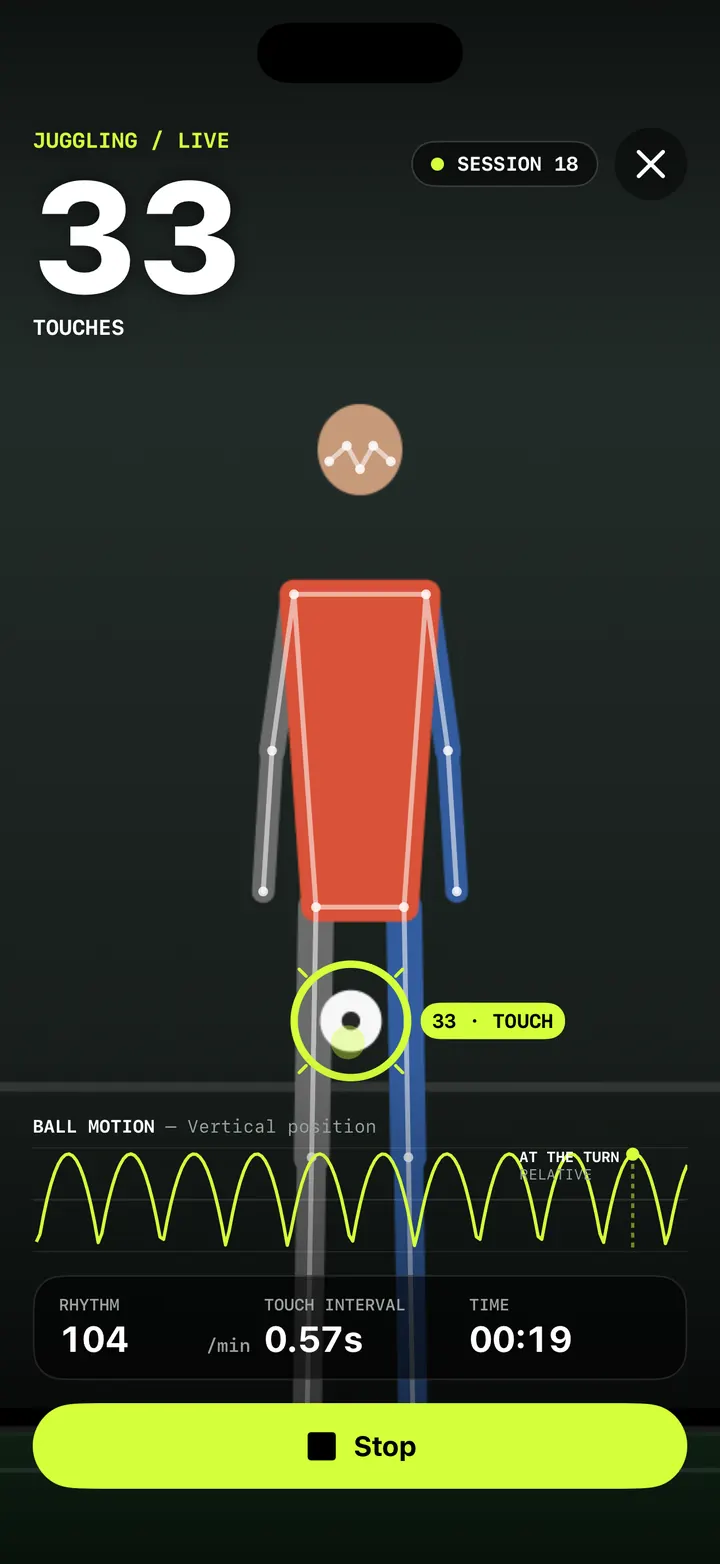
Face blur and Minors mode: filming young players with care
Minors mode in TouchTally blurs faces on screen and in Replay, pixellates them in exported videos, and asks a grown-up before anything is shared or sent.
ReadTraining video, kids and privacy: how TouchTally handles it
Where TouchTally keeps sessions and videos, what the camera and microphone are for, how Minors mode protects young players, and how to delete everything.
Read guide