Training history and personal records: every session in one place
How TouchTally's History tab works: the streak line, personal records per drill, the 30-day best-per-day chart, filters, session list and the iPad layout.
Short answer
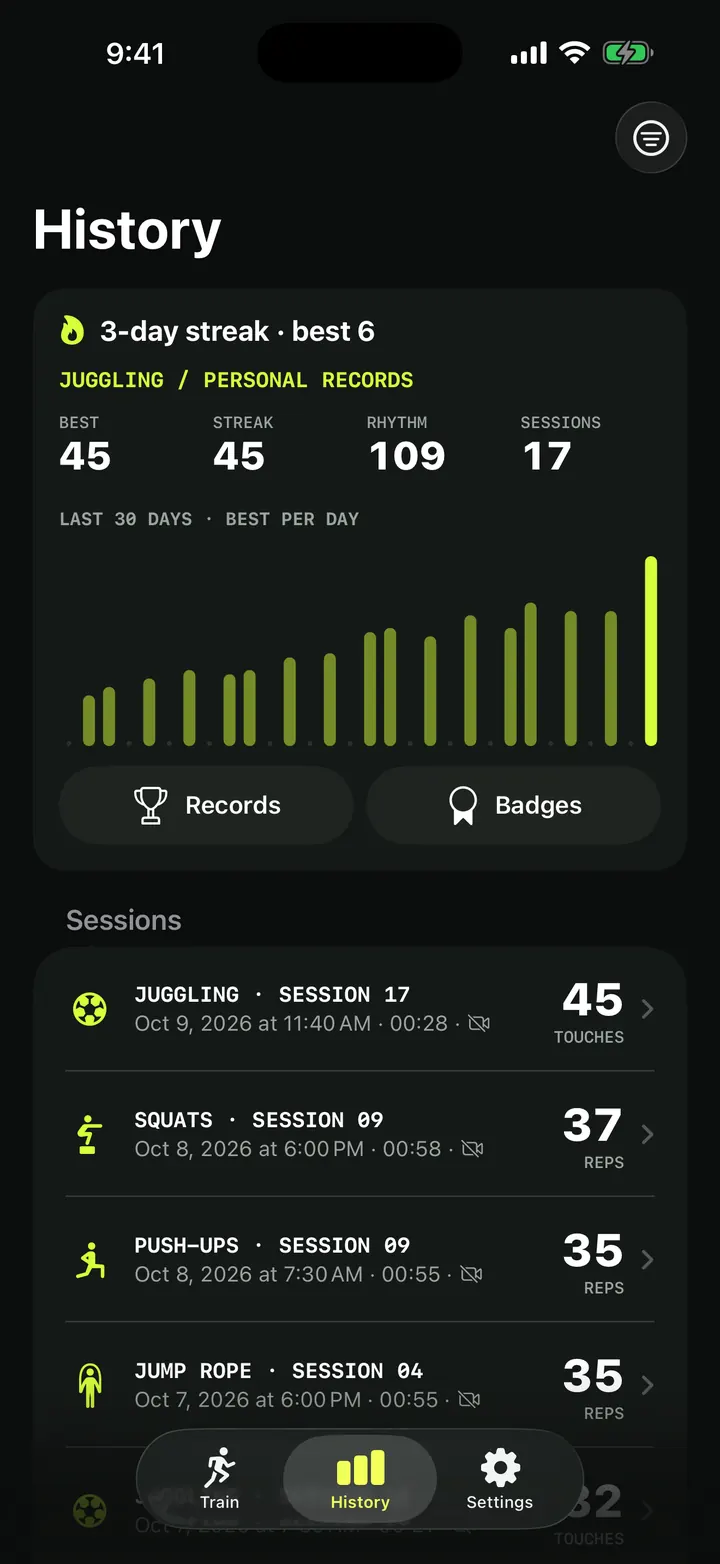
Every session you count in TouchTally lands in the History tab. At the top you see your streak, your personal records for a drill and a chart of your best score per day over the last 30 days. Below that is the list of sessions, which you can filter by drill and time range. Free shows the last 7 days of sessions; Pro shows your whole history, and nothing is ever deleted.
Counting a session is only half the story. The other half is seeing whether you are getting better. TouchTally keeps a log of every juggling, rope, push-up or squat session you count, so you can see your best, your streak and your trend without writing anything down.
The History tab at a glance
TouchTally has three tabs: Train, History and Settings. History opens with a header card for one drill, followed by your sessions.
Streak line
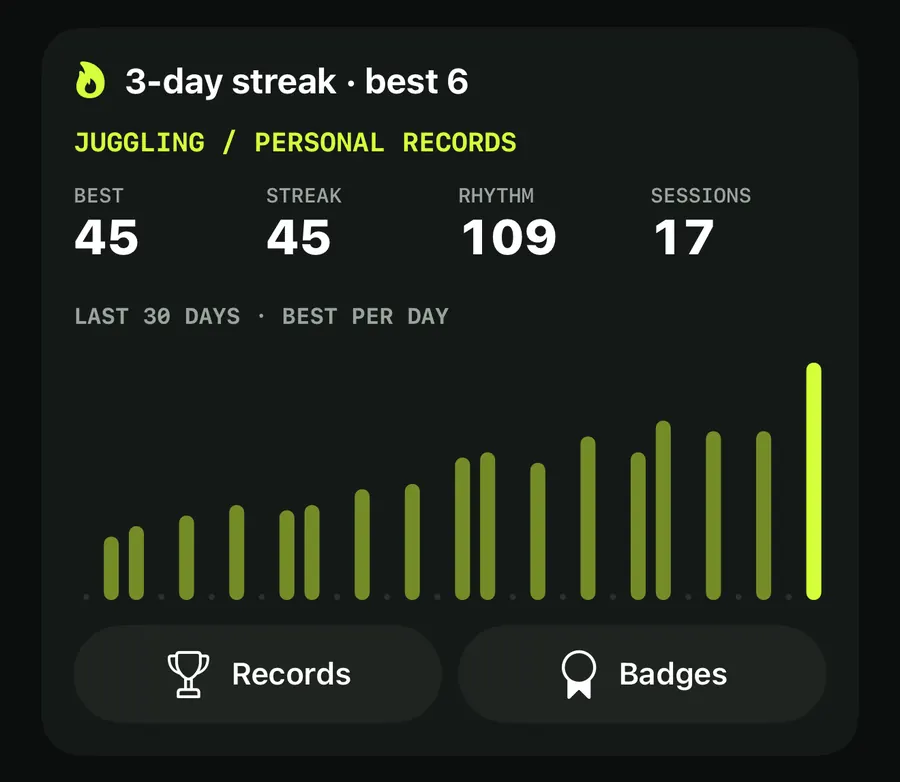
The first line shows your day streak and your best, for example "3-day streak · best 6". If you have not trained recently, it reads "Train today to start a streak". How streaks are counted, including the weekly freeze day, is covered in streaks, weekly goal and badges.
Personal records
Under the drill name you get four numbers:
- BEST: your highest count for the drill
- STREAK: your longest unbroken run
- RHYTHM for ball drills, or PACE for other drills (hold drills such as Plank show neither)
- SESSIONS: how many sessions you have counted
Records count every session, including older ones the free plan hides from the list.
Last 30 days
The chart is labelled "LAST 30 DAYS · BEST PER DAY". Each day gets one bar showing your best result that day. Days with no session are shown as small dots, and today is drawn in full accent colour so you can find it at a glance. The chart also supports Audio Graph, so VoiceOver users can listen to the trend.
The Records screen
Tap Records for the details per drill. Each record comes with the date you set it:
- Most in 30 s
- Most in 60 s
- Fastest 100
- Longest streak
- Longest hold
- Best form score
- Weak-foot streak
If you have set a weak foot, a "by week" section shows the share of touches with that foot over the last 8 weeks. That section is free. With Pro, a Leaderboard section ranks you against friends whose challenges you have played.
Before your first session the screen reads "Records show up after your first session." After a session, the Result screen shows a New records card when you have beaten one.
Next to Records, Badges opens your badge collection. Badges have their own post: streaks, weekly goal and badges.
Filter your sessions
The filter button at the top right opens the Filter menu:
- All drills, or a single drill
- Last 7 days, Last 30 days or All time
- Progress report (PDF), a Pro export of the last 30 days
The left bar button, Plan my week, helps you plan training days; it is covered in the post on the coach's note and Ask AI.
Find a past session
- Tap the History tab.
- Tap the filter button and pick a drill, or keep All drills.
- Pick a time range: Last 7 days, Last 30 days or All time.
- Scroll the list and tap a session to open its Result screen, with stats, Replay and Export.
The session list
Each row shows the drill and session number (for example "JUGGLING · SESSION 17"), the date and time, and the duration, with the count on the right. A row says "edited" if you changed the count by hand, and a crossed-out video icon means no video was kept for that session.
Swipe a row to the left for its actions:
- Delete video removes the recording but keeps the count and stats. It only appears when the session has a video.
- Delete removes the whole session.
If the session was also saved to Apple Health, TouchTally asks "Also delete the workout in Apple Health?" so you can keep or delete it there too.
On the free plan, sessions older than 7 days are hidden from the list. A row tells you how many, for example "N older sessions are hidden", with the note "Free keeps 7 days in view. Pro shows your whole history. Nothing is deleted." If you upgrade later, they are all still there.
History on iPad
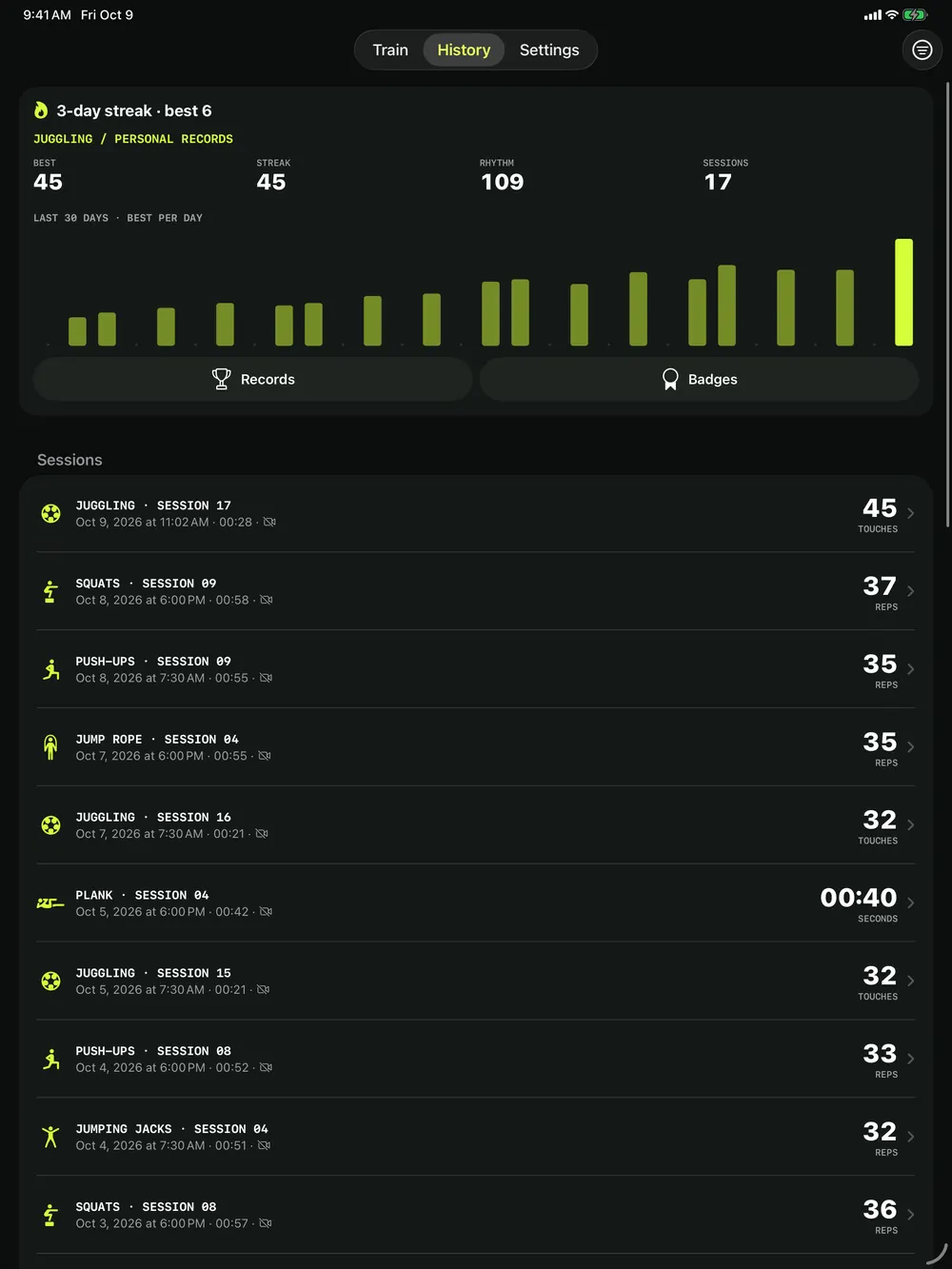
TouchTally runs on iPad as well as iPhone. On iPad the tabs move to the top of the screen and the header card and session list use the full width, so you can see a longer stretch of sessions at once.
History is kept on the device you train with. To move sessions to another device, use a backup (see result images, CSV and PDF export).
Does the free plan delete my old sessions?
No. Free keeps the last 7 days in view and hides older sessions. They stay on your iPhone, and Pro shows them all again.
Do hidden sessions still count towards my records?
Yes. Records count every session, including the ones the free list hides.
What does the crossed-out video icon mean?
No video was kept for that session, for example because you deleted the video or turned off saving video. The count and stats are still there.
Can I see only one drill?
Yes. Open the Filter menu and pick a drill instead of All drills. You can also limit the list to the last 7 days, the last 30 days or all time.
Does TouchTally work on iPad?
Yes. The app runs on iPad, and History uses the wider screen to show more sessions at once.
Keep reading
Training streaks, a weekly goal and badges that keep you coming back
How TouchTally counts day streaks with a weekly freeze day, sets a weekly training goal with reminders, awards 22 badges and puts it all in a widget.
Read
Result images, CSV and JSON export, PDF progress reports and backups
Share a TouchTally result image in post, story or square size, export sessions as CSV and JSON, make a 30-day PDF progress report or back up with a password.
Read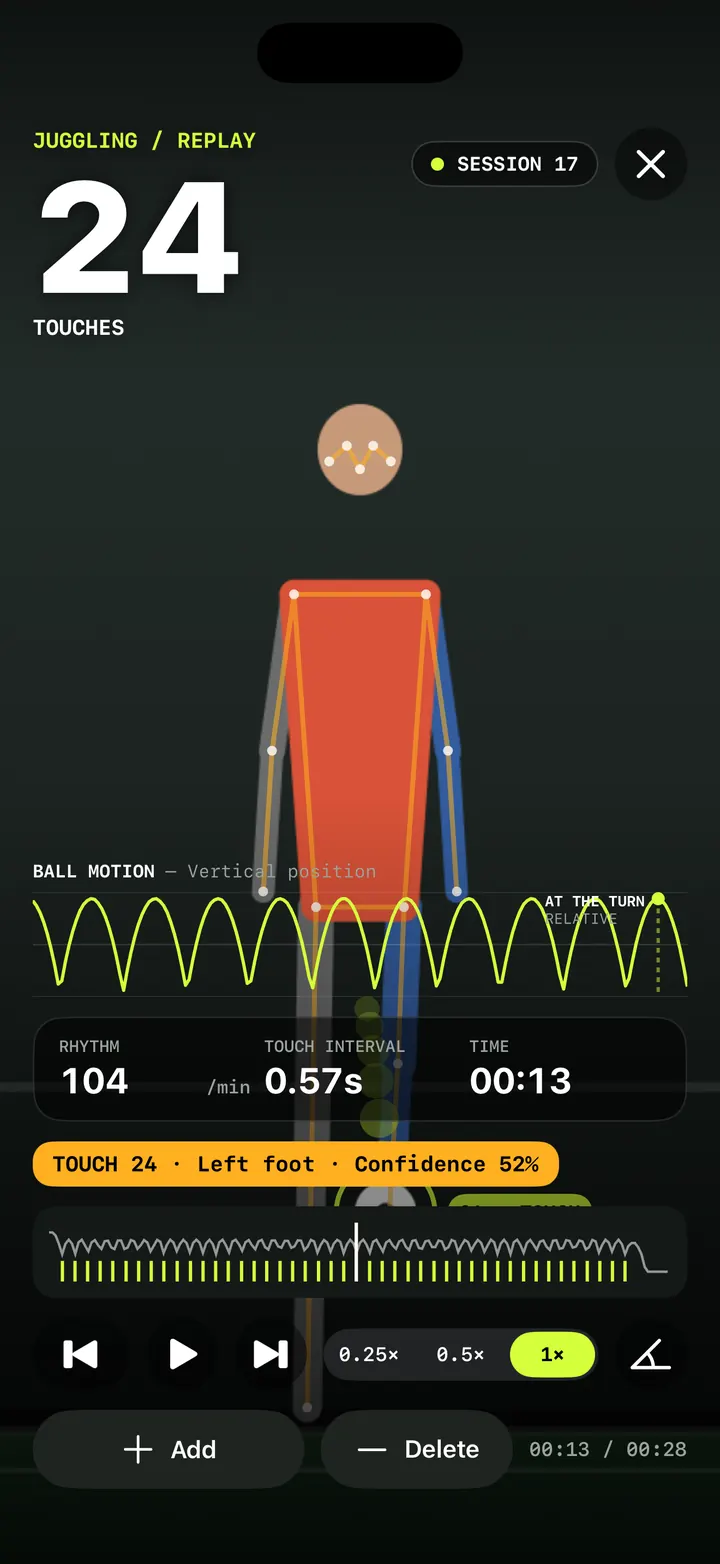
Replay and fix your count: check every touch in slow motion
Step through every counted touch or rep in TouchTally's replay at 0.25×, spot low-confidence counts, and with Pro add or delete the ones the camera got wrong.
ReadHow to beat your juggling record: rhythm, replay and records
Use TouchTally’s rhythm, touch interval, slow-motion replay, streaks and challenges to understand why a juggling run ends and how to make the next one longer.
Read guide