Live juggling counter: count every touch with your iPhone camera
How TouchTally counts soccer juggling touches live with the iPhone camera: the setup check, locking on to your ball, the big count and the spoken milestones.
Short answer
TouchTally turns your iPhone into a juggling counter. Prop the phone up 2–3 m away, let it check the light and the frame, tap your ball once and start juggling. The camera counts each touch as it happens, shows the total in large type, and can say every tenth touch out loud. No sensor, no app on a second phone, and the video is analysed on the iPhone.
Counting your own juggling is harder than it sounds. Around touch 30 you start to lose track, and by touch 60 you are arguing with yourself about whether that thigh touch counted. TouchTally takes the counting off your hands so you can keep your eyes on the ball.
What the live counter shows
The live screen is built to be read from a few metres away while you are moving.
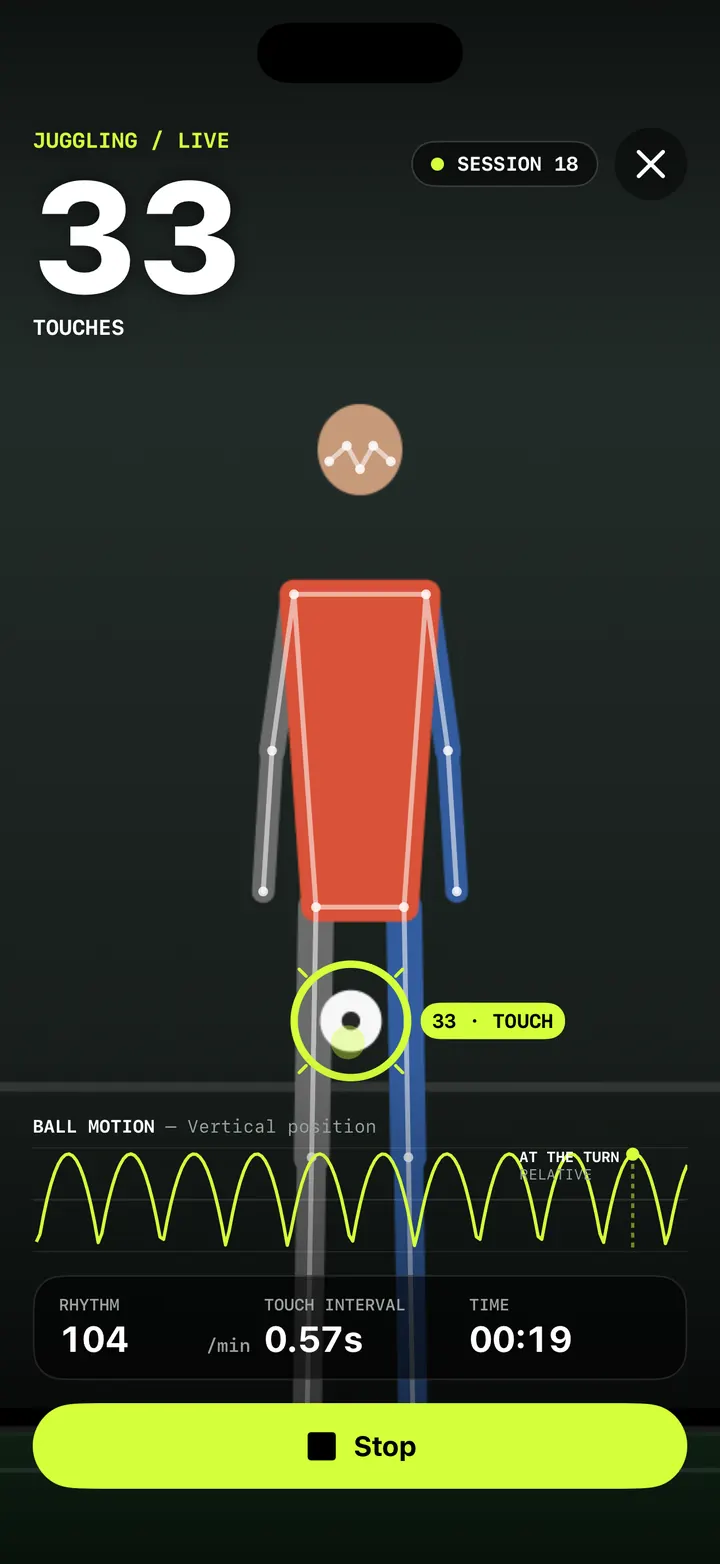
- The count. The number of touches in big type at the top left, with the drill name (JUGGLING / LIVE) above it and the session number on the right.
- The ball ring. A ring follows the ball, with a tag such as "33 · TOUCH" next to it. If the ring is on your ball, the count is following the right thing.
- BALL MOTION. A chart of the ball's height over the last few seconds. Each arc is one up-and-down of the ball, and a marker shows where the last turn happened.
- RHYTHM, TOUCH INTERVAL and TIME. Touches per minute, the time between your last touches, and how long you have been going.
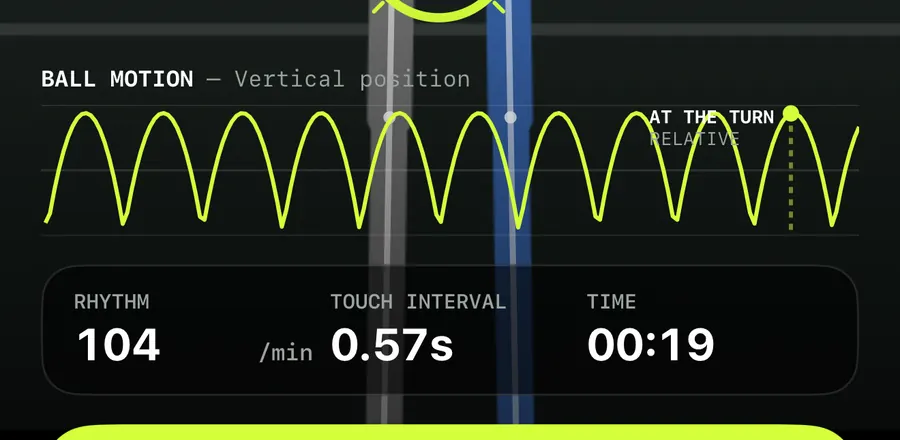
The chart and the rhythm numbers get their own post: reading the ball motion chart and rhythm stats.
How to count juggling touches with TouchTally
Start a juggling session
- Open TouchTally and pick Juggling. It is one of the free drills.
- Prop the phone upright 2–3 m away. Keep your whole body and about 1 m above your head in the frame.
- Wait for the checklist. Before you start, TouchTally checks the light, that your whole body is in view and that the phone is steady. Start turns on when the checklist is all green.
- Tap the ball on the screen to lock on to it. The app confirms with "Ball locked. Tap again to re-lock."
- Tap Start. A 3-2-1 countdown gives you time to get the ball up.
- Juggle. The count goes up with each touch. Tap Stop when you are done, and the session is saved to your history.
The setup step is where most miscounts start, so it is worth getting right once. Our phone setup guide for juggling covers distance, height, background and light in more detail.
What counts as a touch
TouchTally follows your body and the ball. It counts a touch when the ball turns back up after contact, whether that is off your foot, thigh or head. A ball that just drops to the floor does not add to the count.
Because the count is built from what the camera sees, it is only as good as the view. A ball that leaves the frame, a second ball in the background or a teammate walking past can confuse it. If the ring jumps to something else, the app tells you: "If the count follows something else, tap your ball once."
Hands-free while you play
You should not have to look at the screen to know how you are doing.
- Spoken milestones and beeps. TouchTally can say your count every 10 touches, in the app's language, or play a short beep instead. Both are switches in Settings ("Say every 10th aloud" and "Beep at milestones"), so you can turn either off.
- The screen stays on while you count, so the phone does not lock in the middle of a session.
- Front or back camera. Use the switch-camera button if you want to see yourself on the screen while you juggle.
After the session
When you stop, the session goes to your history with the total, the time and the rhythm stats. From there you can:
- open the replay and check any touch in slow motion, and with Pro add or remove touches the camera got wrong (see replay and fix your count)
- see your records and how the last 30 days went
- share a result image, or export an overlay video with the count on it
Tips for a clean count
- Juggle on a plain floor with the light in front of you, not behind you.
- Keep some space above your head in the frame. High touches that leave the picture are harder to follow.
- Start with the ball in your hands and drop it onto your foot after the countdown, so the first touch is clear.
- If you train outdoors, put the phone in the shade. Strong sun on the screen is fine; strong sun straight into the lens is not.
Want a goal for the next session? Try weak-foot mode and juggling challenges, or read how to beat your juggling record.
Is the TouchTally juggling counter free?
Yes. Juggling is one of the free drills, and live counting has no session limit. Pro adds drills such as Plank and Shooting, count fixes and replays for every session, full history and video export.
Does TouchTally need an internet connection to count?
No. The camera video is analysed on the iPhone while you play, so the counter works offline, for example on a pitch with no signal.
Can it count thigh and head touches?
Yes. A touch is counted when the ball turns back up after contact, so foot, thigh and head touches all count as long as the camera can see the ball.
What if the count is wrong?
Open the session's replay and step through the touches to see what happened. With Pro you can add or delete the touches the camera got wrong, and the session is marked as edited.
How far away should the phone be?
About 2–3 m, upright, with your whole body and roughly 1 m above your head in the frame. The setup checklist tells you when the framing is right.
Keep reading
Ball motion chart and rhythm stats: read how even your touches are
How to read TouchTally's BALL MOTION chart, rhythm per minute and touch interval, and how the Pro metronome scores your touches against a steady beat.
Read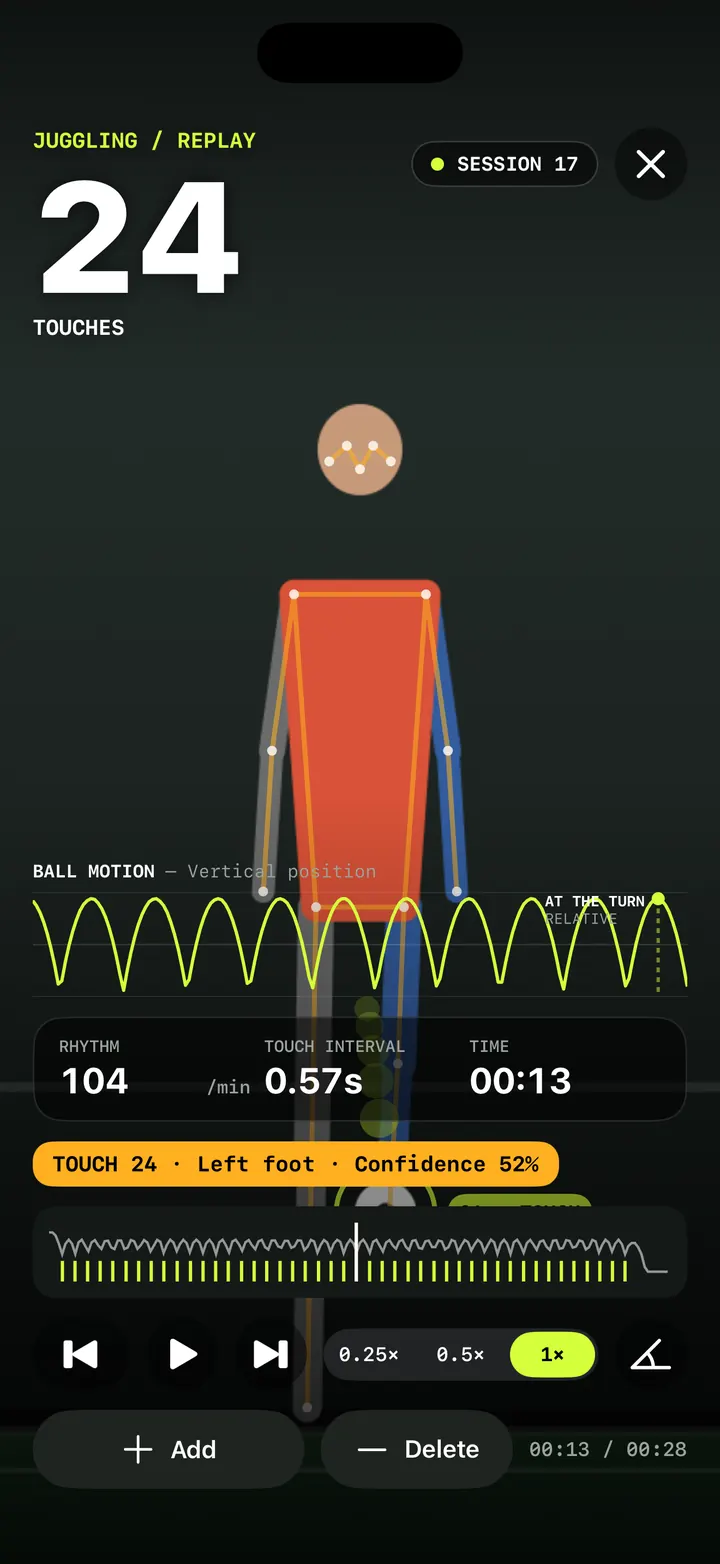
Replay and fix your count: check every touch in slow motion
Step through every counted touch or rep in TouchTally's replay at 0.25×, spot low-confidence counts, and with Pro add or delete the ones the camera got wrong.
Read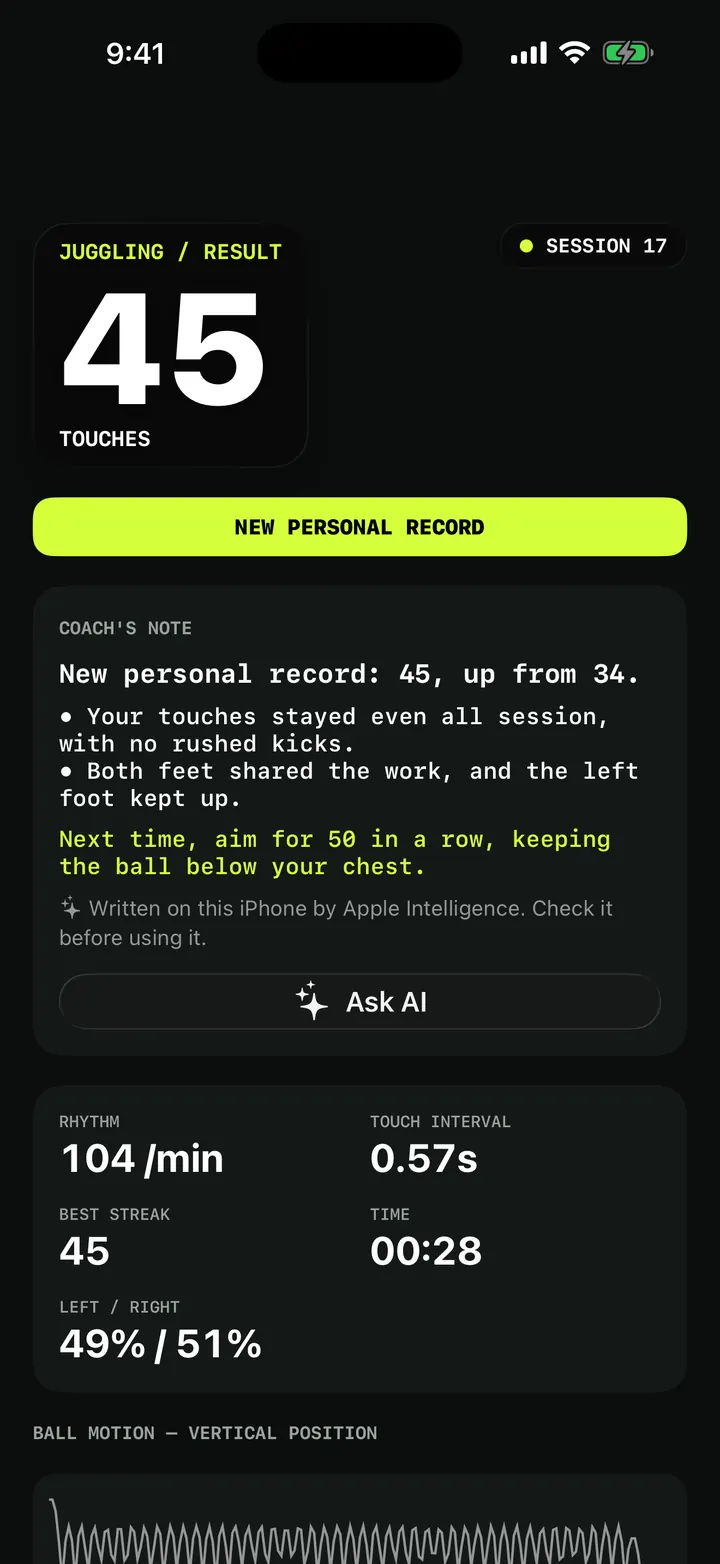
Weak-foot juggling and challenges: patterns, height and first-touch control
Train your weak foot with TouchTally: track left and right touches for free, then try Pro juggling challenges for patterns, ball height and first-touch control.
ReadHow to set up your phone to count soccer juggling
Where to put your phone, how far away, and what light and background to use so TouchTally counts every juggling touch. Plus quick fixes when the count is off.
Read guide