Basketball shot tracker: count makes and misses with AR hoop placement
TouchTally's Shooting drill counts makes and misses from the iPhone camera. Tap the rim to place the hoop with AR, then shoot and see made, missed and your %.
Short answer
TouchTally's Shooting drill turns your iPhone into a shot tracker. Put the phone behind you or to the side, 4–6 m from the hoop, tap the rim once to place it, and start shooting. Every shot is counted as a make or a miss, and the screen shows your makes, attempts and shooting percentage as you go. Shooting is a Pro drill.
Counting your own makes during a shooting session means doing maths between shots, and it is easy to lose track by shot 30. TouchTally keeps the tally so you can focus on your form and your rhythm.
How a shot is counted
TouchTally needs to know where the hoop is. Once it does, it draws a zone around the rim and watches the ball's arc.
- An attempt starts when the ball rises above the bottom of the hoop zone. Dribbles never get that high, so dribbling between shots does not start an attempt.
- A make is a ball that peaks above the rim, then comes down through the rim line, inside the width of the rim, and leaves below the zone.
- A miss is any attempt that does not do that, including a shot where the camera loses the ball for more than 1.5 seconds.
When a shot goes in, the hoop glows on screen and the count goes up.
Placing the hoop with AR
With the back camera on an iPhone that supports AR, TouchTally uses augmented reality to pin the hoop in place. Here is how it works:
- When asked, slowly move the phone so it can scan the floor. If it needs help, it says so: "Move the phone slowly to scan the floor.", "Hold the phone still." or "Point the camera at the floor with more light."
- Then the hint reads "Tap the rim to place the hoop."
- Tap the rim on the screen. TouchTally sizes the hoop zone from a regulation 45 cm (18 in) rim.
- You see "Placed. The hoop and cones stay put when the phone moves."
That last part is the point of AR: if the phone gets nudged or slides a little, the hoop zone stays on the rim instead of drifting. If the placement looks off, tap "Place again". Start stays off until the hoop is placed, so you cannot begin a session with no hoop.
The hoop position is saved with the session, so the replay can draw the same zone on the video afterwards.
Set up a shooting session
Track your shots
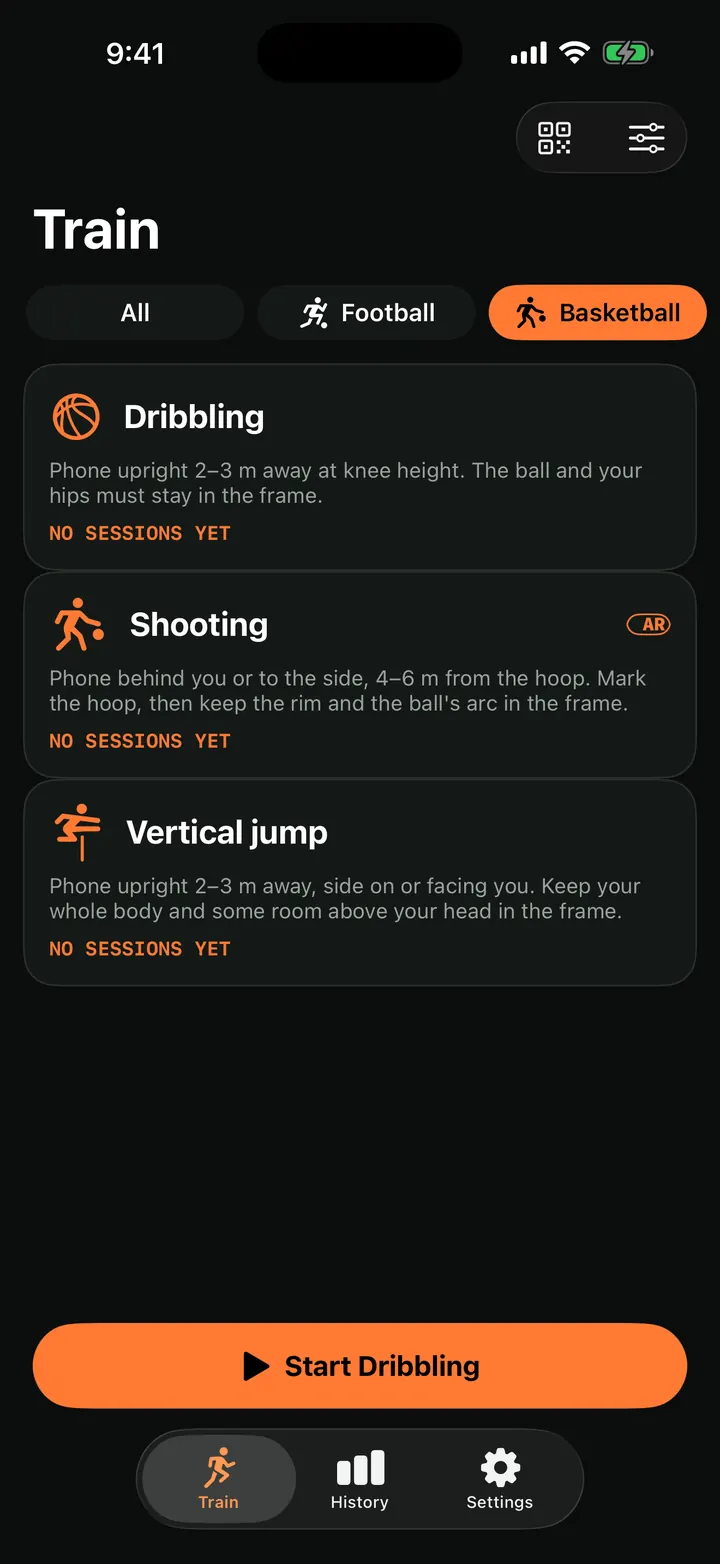
- Open TouchTally, tap Basketball and pick Shooting.
- Put the phone behind you or to the side, 4–6 m (about 13–20 ft) from the hoop. A tripod or a bag on a bench works well.
- Frame the shot so the rim and the ball's whole arc are in view, with some space above the rim.
- Place the hoop: tap the rim when asked, or drag the box onto it.
- Tap Start. When you see "Shoot when ready", start shooting.
- Tap Stop when you are done. The session is saved to History.
What you see while you shoot
The live screen shows your makes in large type and a line under the video such as "8/10 made · 80%", which updates after every shot. The BALL MOTION chart traces each arc, so you can see your release and the ball's path between shots.
After the session, the "Shooting" card on the result lists:
| Row | What it shows |
|---|---|
| Made | Makes out of attempts, for example 11/14 |
| Shooting percentage | Makes divided by attempts |
| Best streak | Your longest run of makes in a row |
The coach's note can also sum it up in a line, such as what share of your shots went in. More on that in coach's note and Ask AI.
Fixing a miscounted shot
If a make was counted as a miss, or a rebound was counted as a shot, open the session's replay. You can step through each attempt at slow speed and check what happened. With Pro you can add or delete events; a shot you add by hand counts as a make. The session is then marked as edited. See replay and fix your count.
Follow along on Apple Watch
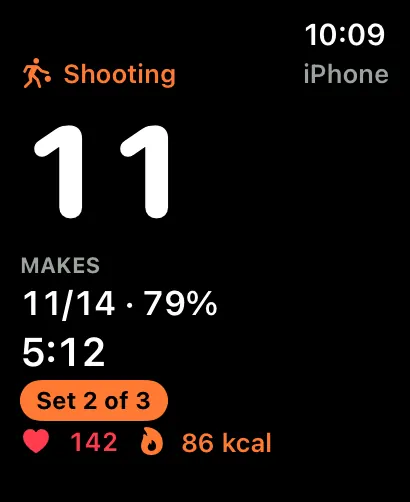
If you wear an Apple Watch, the TouchTally Watch app mirrors the session from the iPhone. It shows your makes, a line such as "11/14 · 79%", the clock and "iPhone" as the source. You can pause or stop the session from your wrist without walking back to the phone. More in the Apple Watch post.
Want to round out a basketball session? Warm up with the dribble counter and finish with the vertical jump test.
Is the basketball shot tracker free?
No. Shooting is one of the Pro drills. The Basketball section also has Dribbling, which is free.
Where should I put my iPhone to track shots?
Behind you or to the side, 4–6 m from the hoop. Keep the rim and the ball's whole arc in the frame, with some room above the rim.
Do I need AR to use the shot tracker?
No. AR keeps the hoop zone pinned to the rim if the phone moves, but without it you can drag a box onto the rim yourself. Just keep the phone still.
Will dribbling between shots be counted as shots?
No. An attempt only starts when the ball rises above the bottom of the hoop zone, and dribbles never get that high.
Can I correct a make that was counted as a miss?
Yes, with Pro. Open the replay, check the shot, and add or delete events. Shots added by hand count as makes, and the session is marked as edited.
Keep reading
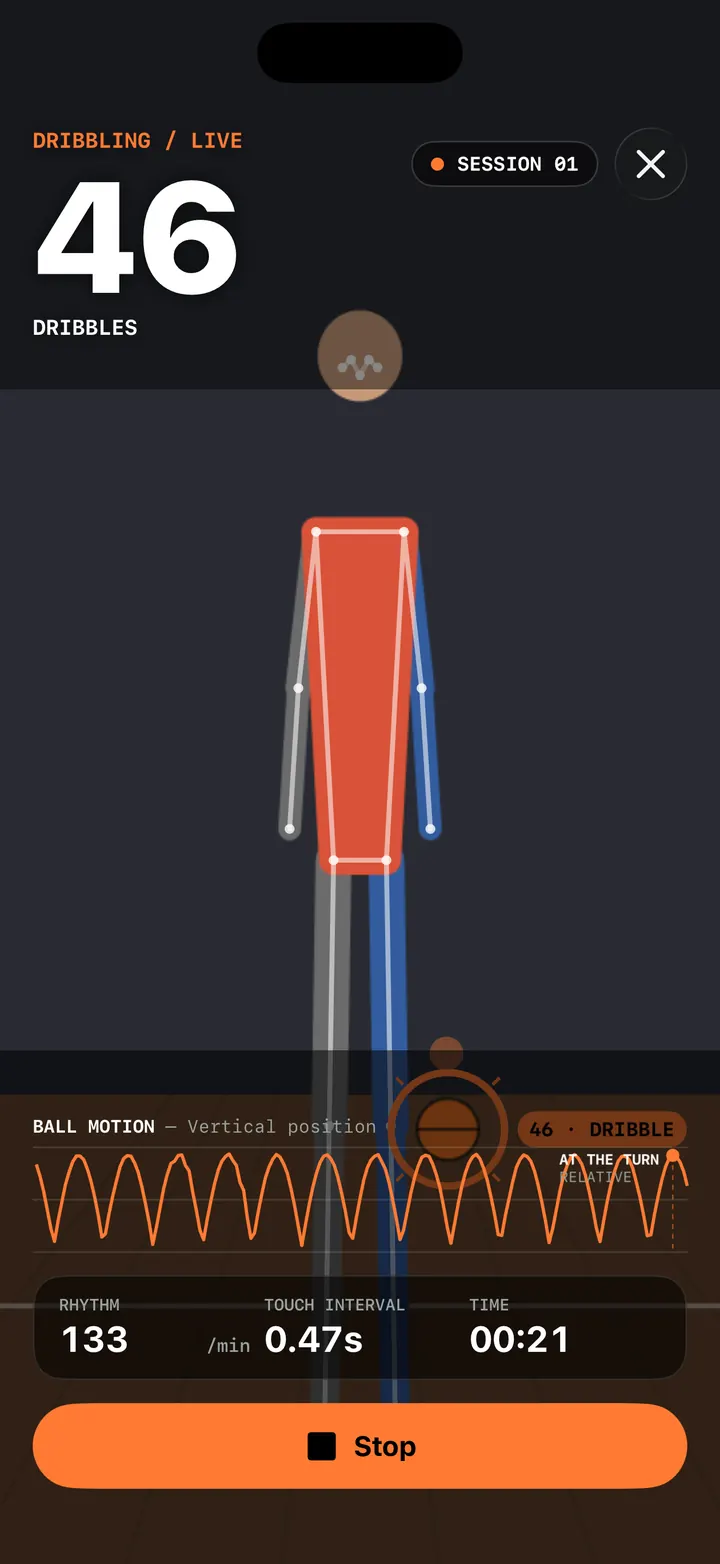
Basketball dribble counter: count dribbles with your iPhone or Apple Watch
Count basketball dribbles with TouchTally: set the iPhone at knee height, see rhythm and best streak, and with Pro count dribbles at the wrist on Apple Watch.
ReadVertical jump test: measure your jump height with your iPhone
Measure your vertical jump with TouchTally: the iPhone camera counts each jump and works out its height from flight time, or from AR body tracking if supported.
Read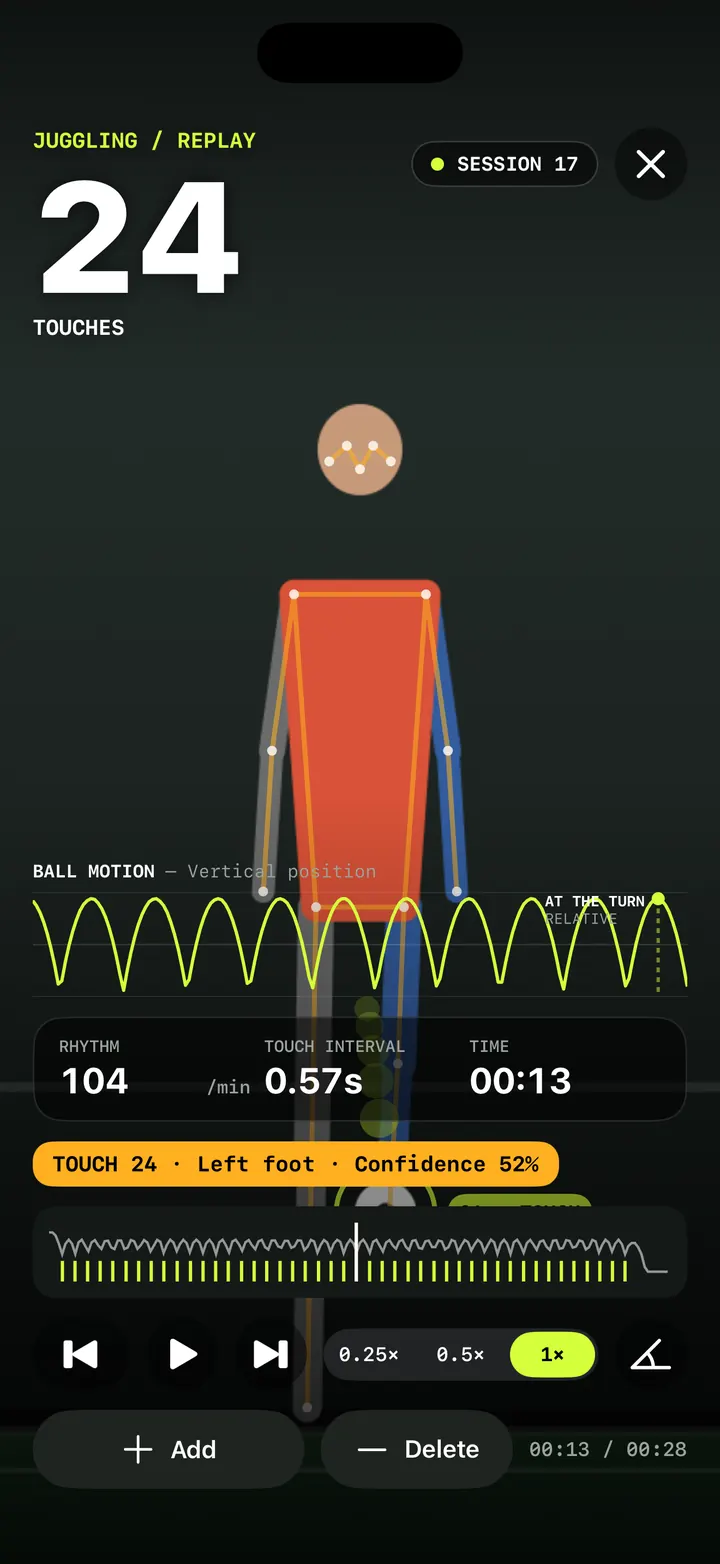
Replay and fix your count: check every touch in slow motion
Step through every counted touch or rep in TouchTally's replay at 0.25×, spot low-confidence counts, and with Pro add or delete the ones the camera got wrong.
ReadHow to set up your phone to count soccer juggling
Where to put your phone, how far away, and what light and background to use so TouchTally counts every juggling touch. Plus quick fixes when the count is off.
Read guide